

Prerequisites
- A Factory account, with the desktop app installed and a model configured.
- A Tavily API key.
Connect Tavily
1
Find the Tavily connector
Open Connectors from the bottom of a Droid session, or go to Settings → Connectors in the Factory app.Search for Tavily and click Connect.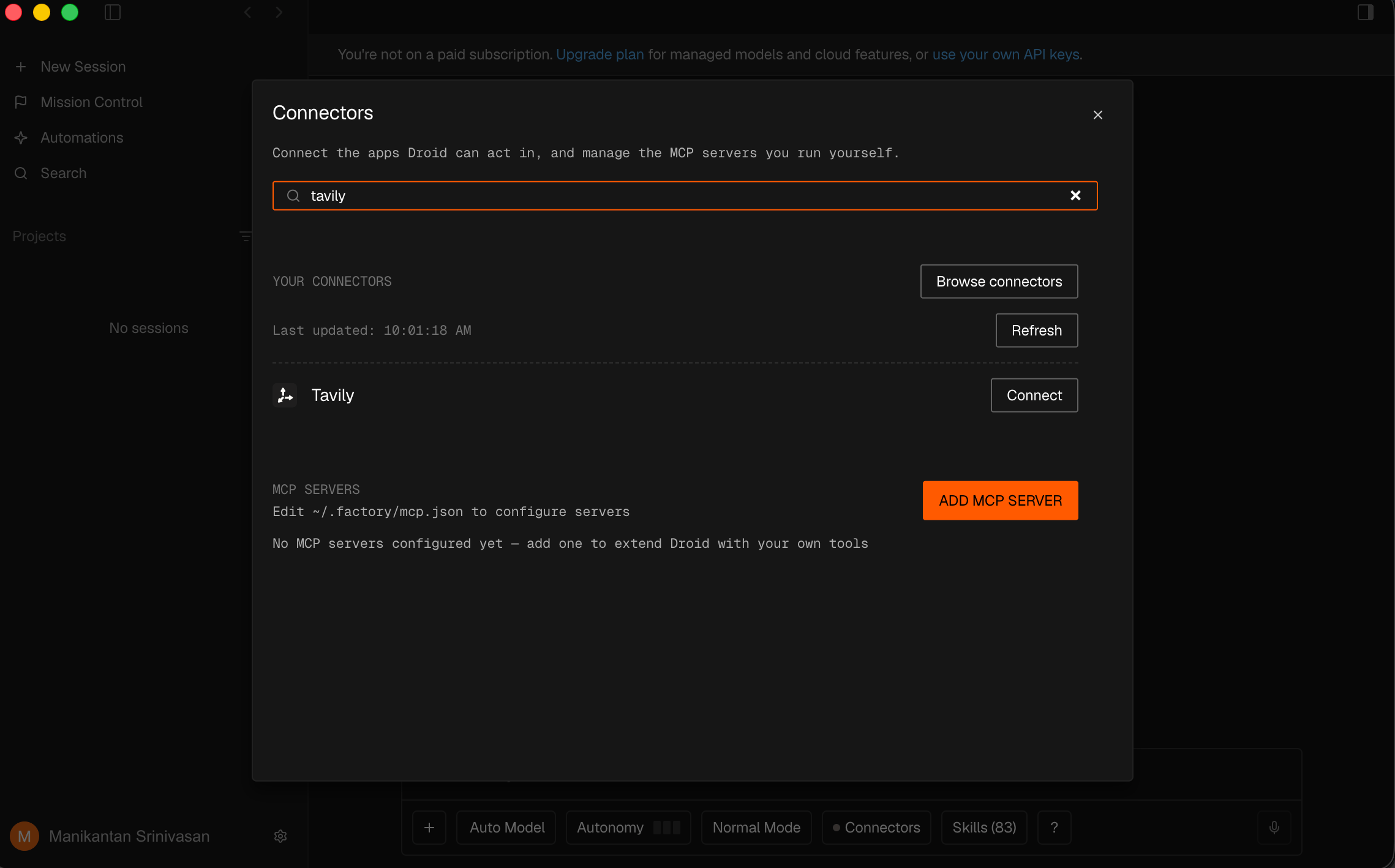
2
Add your Tavily credentials
In the authorization window, sign in to Tavily, copy an API key from your dashboard, and paste it into the key field.Optionally, enter a Project ID to attribute usage to a Tavily project. Copy it exactly from your dashboard. Click Next and complete the connection flow.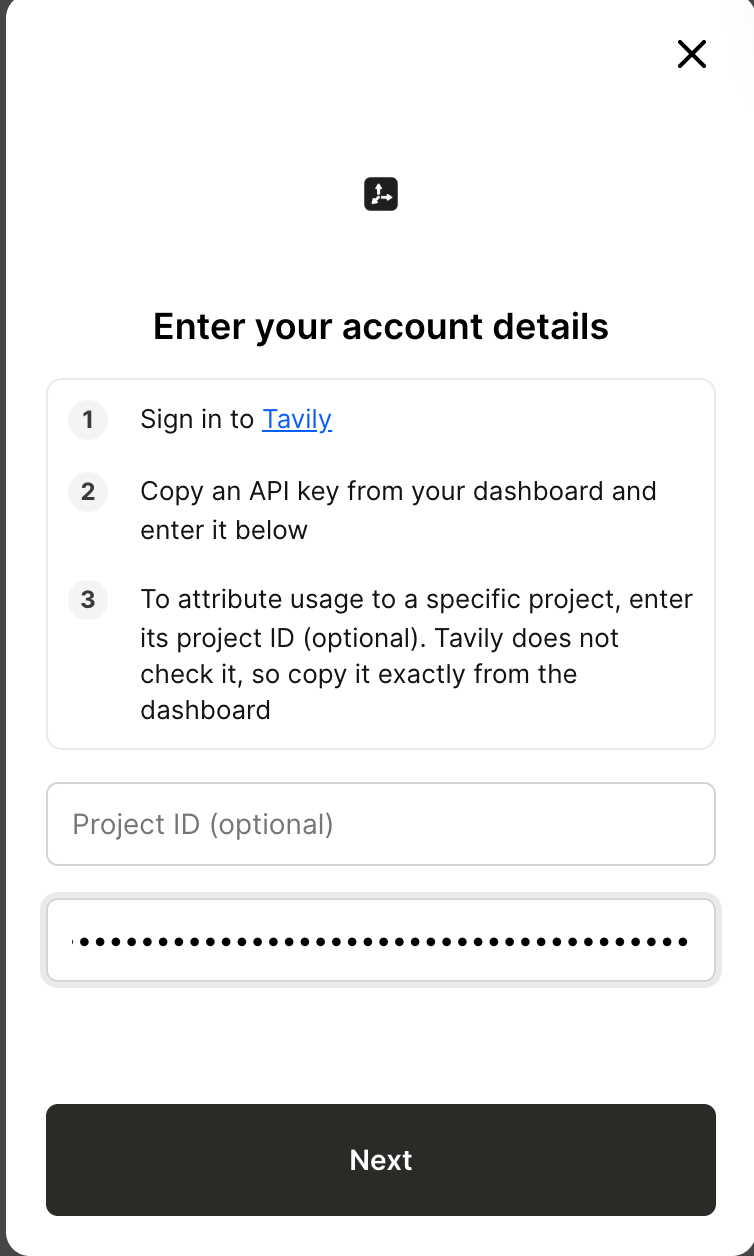
3
Use Tavily in a session
Return to Factory, select your project, and start a Droid session. Ask Droid to use Tavily; it discovers the connected tools when needed.
Example usage
Open a Next.js project and ask Droid:Use Tavily to find three AI product announcements from the past seven days. Add a “Latest AI News” section to this Next.js app’s homepage, with a title, one-sentence summary, publication date, and source link for each. Match the existing design.Droid can search with Tavily, check the source pages, and use the results to build the section. Look for Tavily actions in the session to confirm the connector is being used.
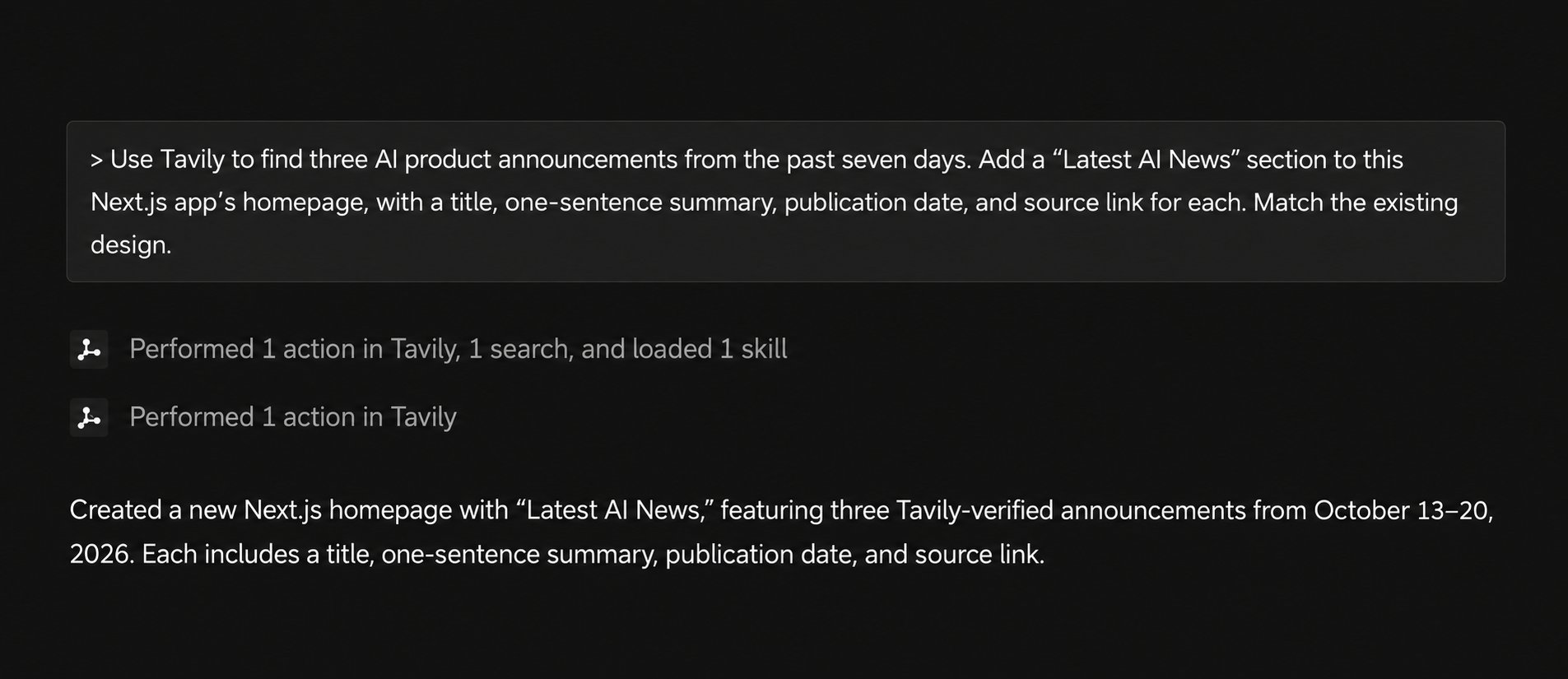
Condensed example session showing the prompt, Tavily actions, and result.