

Introduction
Tavily is available across the Microsoft 365 Copilot ecosystem in two ways:- As a declarative agent — open Tavily as a dedicated agent in Microsoft 365 Copilot Chat for source-backed web search, page extraction, site mapping, and crawling.
- As a Copilot Cowork plugin — add Tavily to Cowork so it can gather current web information while completing long-running, multi-step tasks and producing deliverables such as spreadsheets.
Get Tavily from Microsoft Marketplace
Add real-time web intelligence to Microsoft 365 Copilot and Copilot Cowork.
Available Tavily tools
Use Tavily as a declarative agent
The Tavily declarative agent provides a focused research experience inside Microsoft 365 Copilot Chat. Copilot chooses the appropriate Tavily tool from your natural-language request, then synthesizes the returned web content into a response with source links.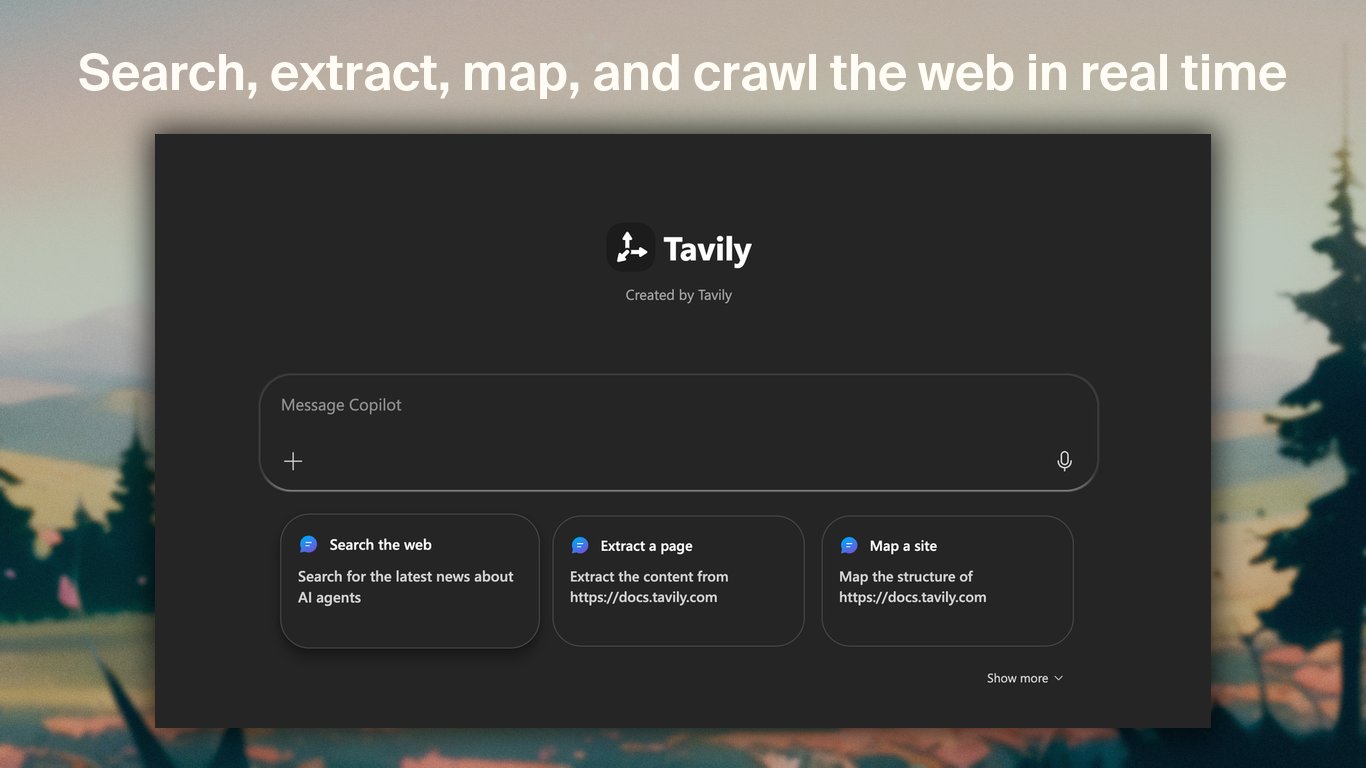
Requirements
- A Microsoft 365 account with access to Microsoft 365 Copilot
- Access to apps and agents approved by your Microsoft 365 administrator
- A Tavily account, which you can create during the first-use OAuth flow
Install and connect
Step 1: Open the Agent Store
Step 1: Open the Agent Store
Open the Microsoft 365 Copilot app. In the navigation panel, expand Agents, then select All agents to open the Agent Store.
Step 2: Add Tavily
Step 2: Add Tavily
Search for Tavily, open its listing, and select Add. Tavily then appears in the Agents section of the navigation panel.
Step 3: Start a Tavily conversation
Step 3: Start a Tavily conversation
Select Tavily from the Agents list and send a prompt that needs web access, for example:
Step 4: Connect your Tavily account
Step 4: Connect your Tavily account
On the first tool call, Copilot prompts you to connect to Tavily. Complete the OAuth sign-in or create a Tavily account. After authorization, Copilot continues the request automatically and remembers the connection for later conversations.
If Tavily does not appear in the Agent Store, ask your Microsoft 365 administrator to approve or deploy the app for your organization.
Example prompts
Use Tavily as a Copilot Cowork plugin
Copilot Cowork handles long-running, multi-step work. With the Tavily plugin enabled, Cowork can search for fresh information, inspect source pages, and use that evidence while creating a finished deliverable. The following demo uses Tavily to research the world’s most valuable companies, cross-check the results across sources, and create a source-backed Excel spreadsheet from a single prompt.Add and enable the plugin
Step 1: Open Cowork customization
Step 1: Open Cowork customization
Open Copilot Cowork, select the + button, then select Customize.
Step 2: Find Tavily
Step 2: Find Tavily
Open the Plugins tab and search the Microsoft 365 App Store for Tavily. Open the Tavily listing and add it to Cowork.
Step 3: Enable Tavily for the session
Step 3: Enable Tavily for the session
Open the Sources & Skills panel and enable Tavily. You can return to this panel to disable or re-enable the plugin at any time.
Step 4: Connect your Tavily account
Step 4: Connect your Tavily account
Ask Cowork to use Tavily. When Cowork prompts you to connect the plugin, complete the one-time Tavily OAuth flow. The connection remains available in future Cowork conversations unless it is revoked.