

Who can use this feature?Creating more than one workspace is an Enterprise feature. How many your account can have is set by your contract, so talk to your account manager about getting more. On other plans, your organization has a single Default workspace. Talk to an expert to learn more.
Set up a workspace
1
Create a workspace
Open Settings → Workspace and choose New workspace. See Creating workspaces.
2
Invite people
Add them when the workspace is created, or later from Settings → Organization → Invite member, with an admin or member role in the workspace. See Inviting people.
3
Create API keys in it
Switch to the workspace in the sidebar picker, then create keys. A key belongs to whichever workspace was selected when it was created. See API keys.
4
Set a credit limit
Choose Set a limit on the Workspace Usage card on the Overview page, or click the workspace’s usage in Settings → Workspace. Tick No limit for no cap. See Credit limits.
5
Turn on a usage alert
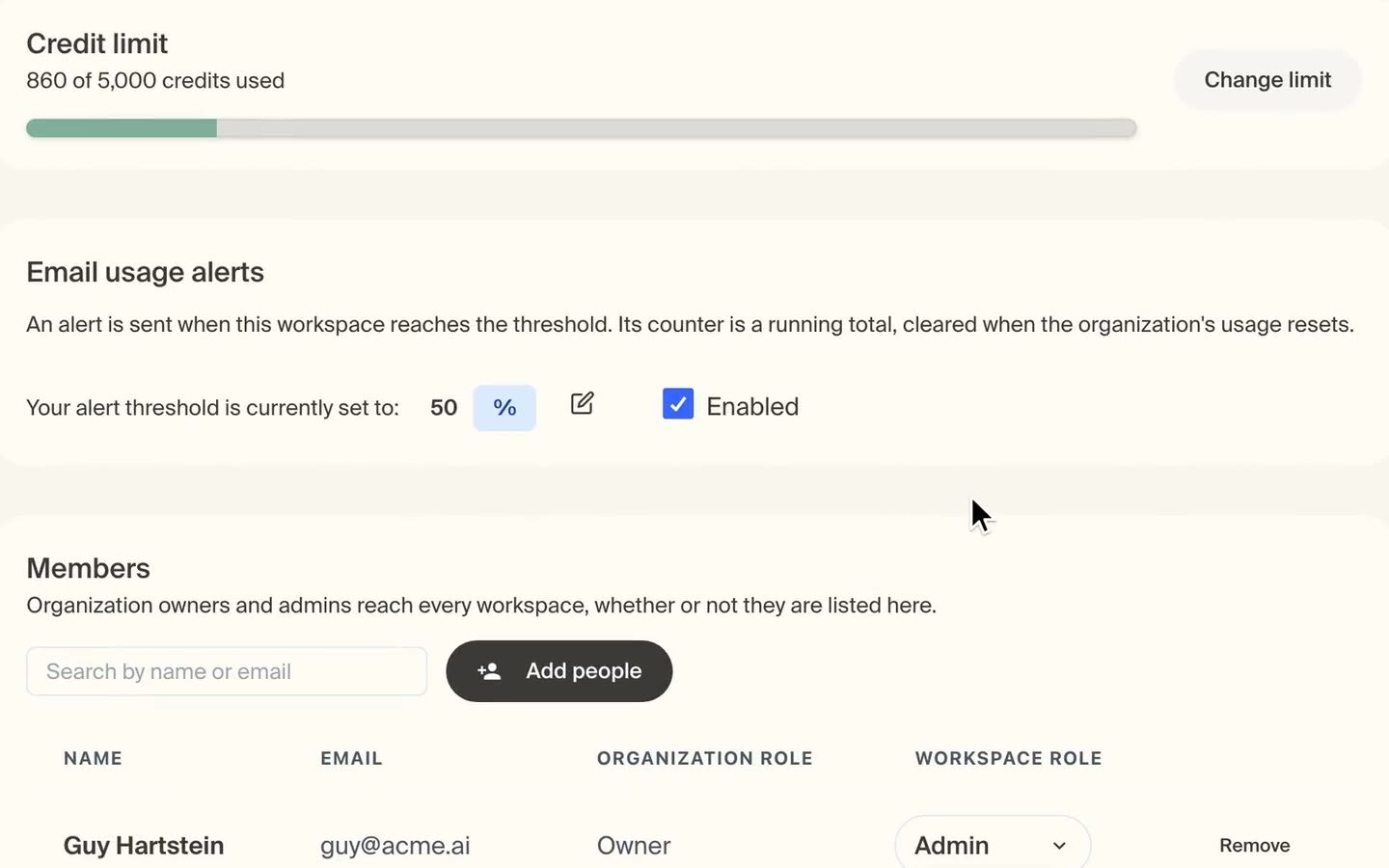
On the workspace’s own page (Manage in Settings → Workspace), set a threshold on the Email usage alerts card and tick Enabled. It emails the workspace’s admins as it nears its limit, and needs a credit limit first. See Usage alerts.
What each one holds
Roles
Everyone has an organization role: owner, admin or member. Organization members also have a workspace role, admin or member, in each workspace they belong to. Owners and admins reach every workspace, so they need no workspace role.Organization roles
Billing is reserved entirely for the owner. An admin cannot open the billing page, see invoices, or change the plan.
Workspace roles
A workspace admin can bring someone new into their workspace, but only as a workspace member, and that person joins the organization as a member. Only organization owners and admins can make someone a workspace admin.
A workspace role never carries across
A workspace role never carries across
Being an admin of one workspace gives you nothing in any other.
Where the workspace admin line falls
Where the workspace admin line falls
A workspace admin runs their own workspace. They cannot do the two things that reach outside it — deleting it, which destroys API keys, or setting its credit limit, which decides how much of the organization’s plan it can consume.
Inviting people
Open Settings → Organization and choose Invite member. An invitation takes an email address, the workspaces the person should join with an admin or member role in each, and a Make them an organization admin checkbox. Tick that box and the workspaces become optional, since an organization admin reaches all of them anyway; leave it clear and you have to pick at least one. The members table and the Invitations list share one search box, which matches part of a name or email address. Invitations last 7 days. If the address already belongs to your organization, no second invitation is sent — the person is added to the workspaces you picked instead. The invitation email names what they are joining: their organization role if you made them an admin, then each workspace and their role in it.Transferring ownership
An organization has one owner. To hand that over, open Settings → Organization, find the person in the members table and set their role to Owner. You then choose whether you stay on as an admin or step down to member; if you step down to member you are offered a workspace to join, and you can also confirm leaving yourself without one. Only the current owner can transfer ownership. Billing follows the owner, but it does not move on its own. The new owner has to add a payment method; once they do, the subscription transfers to them and the previous owner’s subscription for the organization is canceled.Creating workspaces
Open Settings → Workspace and choose New workspace. It asks for a name, then offers to add people straight away: search your organization by name or email, or type a new email address to invite someone.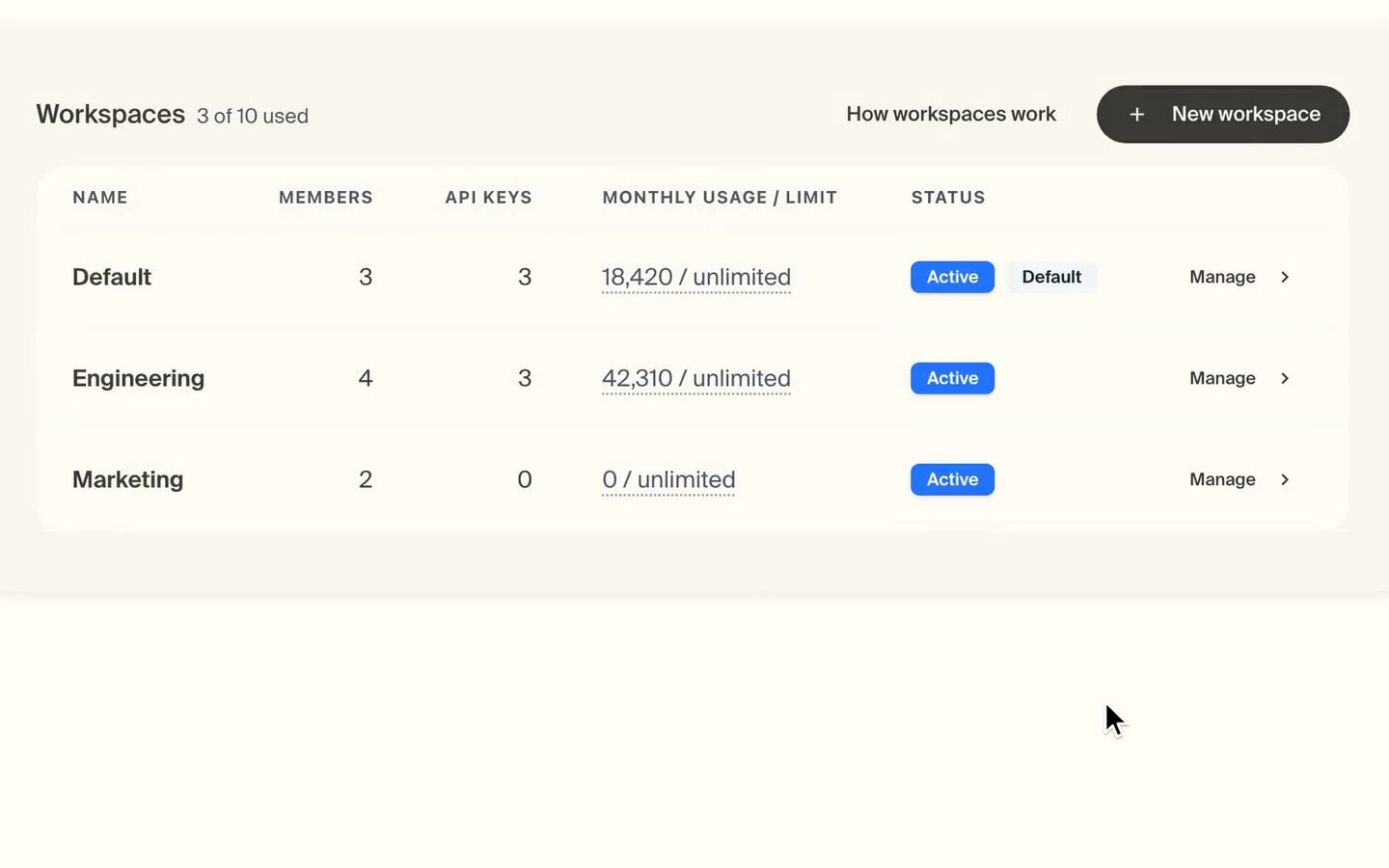
Switching workspace
The workspace picker sits in the sidebar directly under the organization picker. Switching it changes everything on the page — the API keys you see, your usage, and your logs. If your plan allows only the Default, the picker is inactive, and hovering over it explains what more workspaces require.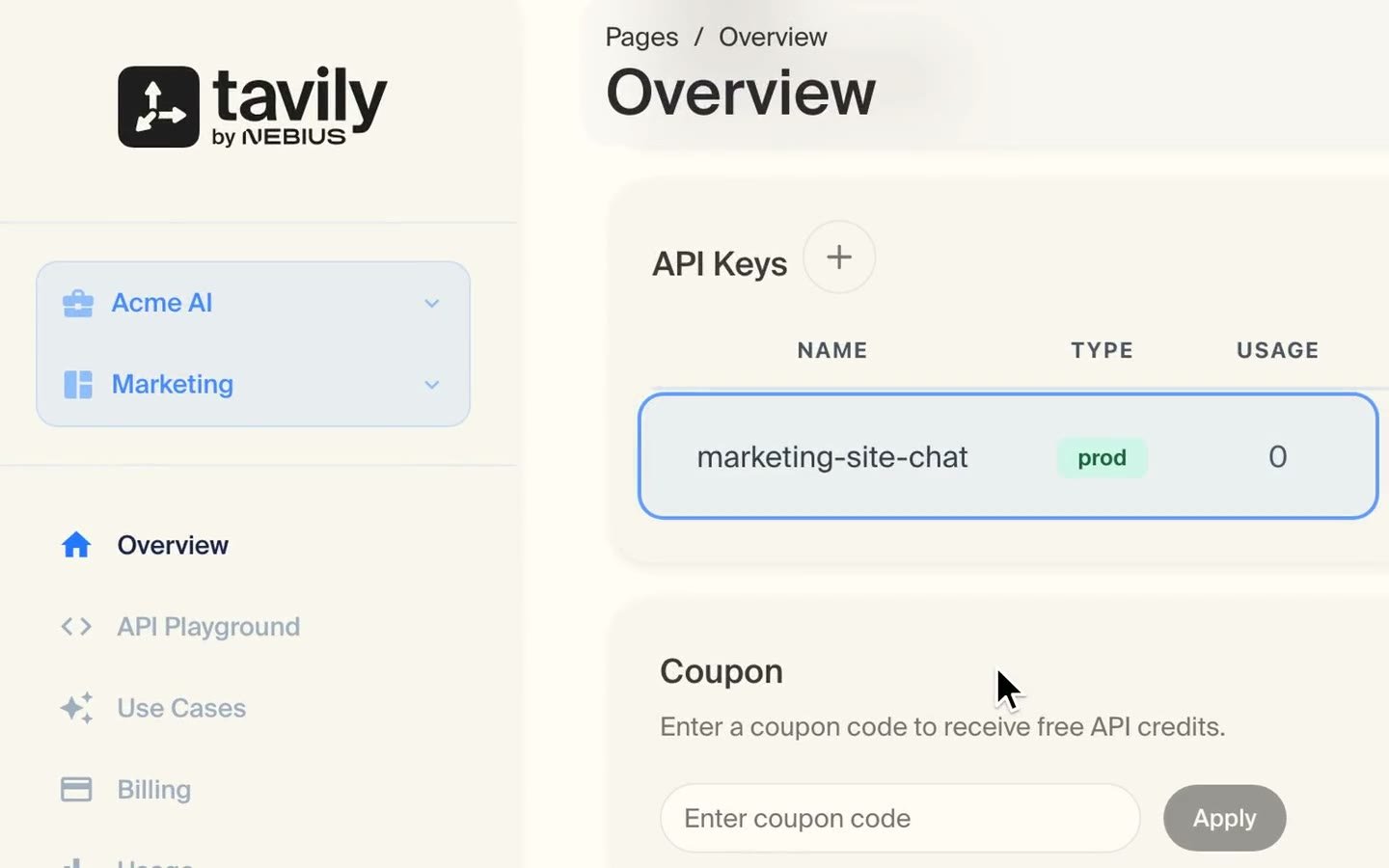
If you belong to no workspace
An organization member reaches only the workspaces they belong to, so someone with none can sign in but has nothing to work with: API keys, usage and logs all live inside workspaces. Instead of the dashboard they see a page saying so, with a Request access button. Pressing it emails your organization owners and admins, naming who asked and linking to the workspace list so adding them takes two clicks. They can ask again after 12 hours. Nothing stops you leaving someone here. Demoting an admin, removing someone from their last workspace, or deleting the workspace they belong to each warn you and name who will be left with nothing, then let you go ahead. They keep their organization membership.API keys
A key is assigned to a workspace when you create it. A key with no workspace of its own belongs to the Default. To create a key somewhere in particular, switch to that workspace first. The API Keys table on the Overview page shows 15 keys at a time; pick Rows per page under it to show more. Once a workspace has more than 15 keys, a search box above the table finds keys by name.Moving a key
A key can be moved to another workspace later. You need to be an admin of both the workspace it is leaving and the one it is joining, so an organization owner or admin can move any key, while a workspace admin can only move keys between workspaces they administer.Workspaces are managed in the dashboard only. Creating workspaces, moving keys, managing members, and setting credit limits or alerts cannot be done through the API.If you rotate keys through the Enterprise key-rotation API, the key making the request must itself be in the Default workspace, and the keys it generates are created there too. A key in any other workspace is refused. This means generated keys count against the Default’s credit limit.
API key permissions
The organization owner decides what everybody else may do with API keys, in Settings → Organization → API Key Permissions. There are four switches — Create, Edit, Delete and View All — over two rows:- Admin applies to organization admins, and to workspace admins in the workspaces they administer.
- Member applies to everybody else.
Search defaults
Default search parameters — excluded domains, included domains, country, and safe search where your plan includes it — apply to every request a key makes, without passing them on every call. They can be set at three levels.
The workspace and API key levels share one card on the workspace’s own page, and the key list there only offers the keys in that workspace.
Safe search appears only on plans that include it. The domain and country fields are Enterprise-only.
Credit limits
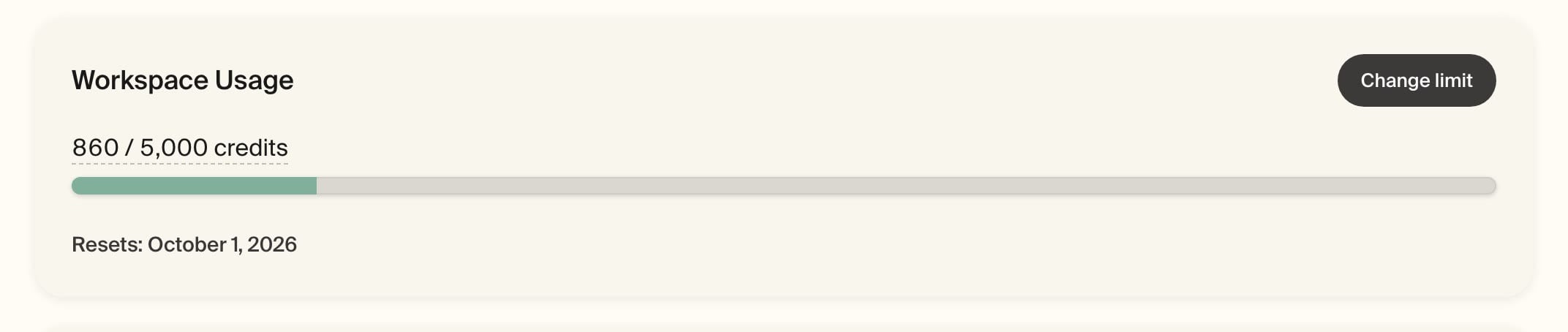
A credit limit is a ceiling on how much a workspace can spend. Only an organization owner or admin can set it, from any of three places:- The Workspace Usage card on the Overview page, which shows the selected workspace’s usage, its limit, and when it resets. Choose Set a limit, or Change limit once it has one.
- The usage column of the table in Settings → Workspace. Clicking a workspace’s usage opens its limit in place; Manage opens the workspace’s own page.
- The Credit limit card on the workspace’s own page.
When the count resets
When the count resets
The limit counts up from zero and clears when your organization’s usage resets — monthly on a monthly plan, once a year on an annual one. An annual plan can reset it on the 1st of every month instead; see Monthly limits.
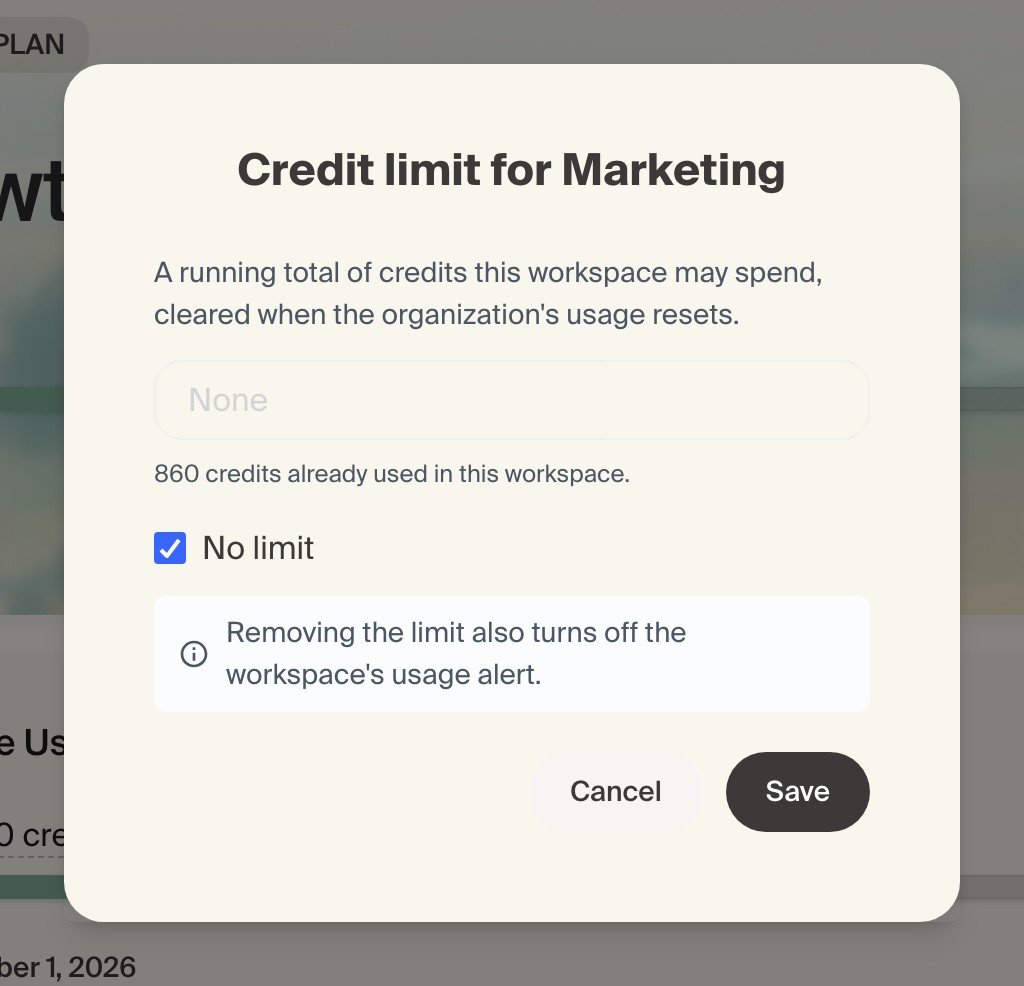
No limit means unlimited, zero means frozen
No limit means unlimited, zero means frozen
With No limit ticked, nothing caps the workspace. A limit of zero stops its keys immediately, which is the fastest way to halt a runaway integration.
A limit may be larger than your plan
A limit may be larger than your plan
This is allowed and harmless. Your plan limit refuses first, so a limit above it never applies. API key limits work the same way.
A limit may be lower than what has already been spent
A limit may be lower than what has already been spent
You will be warned and asked to confirm. The keys in that workspace stop working straight away.
Enforcement is approximate
Enforcement is approximate
Requests already in flight can carry a workspace slightly past its limit, the same way plan limits and API key limits behave. Do not rely on it being exact to the credit.
Monthly limits
On an annual plan, API key and workspace limits normally run until the plan renews. To make them monthly budgets instead, turn on Reset key and workspace limits monthly at the bottom of Settings → Workspace. Only an organization owner or admin can change it.
- Every API key limit and workspace limit then resets on the 1st of each month, at midnight UTC.
- Turning it on resets every key’s and workspace’s usage count to 0 straight away. Nothing is lost from billing or reports: your organization’s usage, plan limit, invoices, and usage charts are unaffected.
- The organization’s own usage and billing stay annual. Only key and workspace limits move to a monthly cycle.
- Turning it off keeps the current counts, and limits run until the plan renews again.
- Monthly plans do not have the switch, because their limits already reset every month.
Usage alerts
Each workspace can email its admins when it approaches its credit limit. Set one on the Email usage alerts card of the workspace’s page.- Alerts are off until you turn them on.
- A workspace needs a credit limit first, since the alert measures usage against it.
- Choose either a percentage of the limit or a fixed number of credits. A fixed threshold cannot exceed the limit.
- The email goes to the organization owner, every organization admin, and every admin of that workspace. Workspace members do not receive it.
- Removing a workspace’s credit limit switches its alert off, rather than leaving it measuring nothing.
- Lowering a limit below an existing fixed threshold reopens the alert settings so you can pick a new one.
- One email per workspace per threshold per calendar month, so a workspace sitting at its limit does not mail you repeatedly.
Usage and logs
Organization owners and organization admins get a Workspaces filter on both the usage and logs pages, and the usage chart can be stacked By Workspace. An organization member’s usage covers only the keys in their own workspaces, so they get no filter. A deleted workspace still appears in the Workspaces filter on both pages, so the credits its API keys spent stay readable after it is gone.Disabled workspaces
If your contracted allowance goes down, the workspaces it no longer covers are disabled, least-used first. Nothing is deleted. A disabled workspace stays visible and can still be opened, so you can see what it holds. Its API keys are refused while it is disabled. You can move its keys into an active workspace, where they start working again immediately under the same secret, and you can delete it outright without enabling it first. You cannot rename it or change its credit limit until it is enabled again. To bring one back, open the workspace settings and choose Enable this workspace. An organization owner, an organization admin, or an admin of that workspace can do this. Enabling is refused if it would put you over your allowance — in that case, upgrade or delete another workspace. Workspaces are not re-enabled automatically when you upgrade, so you decide which ones come back.Deleting a workspace
Deleting is permanent and deletes every API key in the workspace. The dialog lists the keys by name and asks you to typeDelete workspace and all associated API keys to confirm.
Before you delete:
- The Default cannot be deleted. It can be renamed, and it is never disabled.
- A disabled workspace can be deleted as it stands.
- Anyone whose only workspace is this one is named in the dialog. Move them to another workspace in the same step, or leave them without one.
- Pending invitations to only this workspace are cancelled. Invitations covering several workspaces just lose this one.
- Keys are deleted with the workspace, so move any you still need into another workspace first.
When requests are refused
Workspace refusals arrive as HTTP 432, the same status as a plan or key limit, and the message names the workspace.Questions
Do I need more than one workspace?
Do I need more than one workspace?
No. An organization works perfectly well with only its Default. Add more when you want separate groups to hold their own keys, with their own ceiling on what they can spend.
Can a workspace have its own plan or invoice?
Can a workspace have its own plan or invoice?
No. Billing belongs to the organization. A credit limit only caps what a workspace can spend from the plan you already have; it does not buy more credits.
Can someone belong to more than one workspace?
Can someone belong to more than one workspace?
Yes, with an independent role in each.
Does deleting a workspace give the organization its credits back?
Does deleting a workspace give the organization its credits back?
No, and there is nothing to give back. A credit limit is a ceiling rather than a reserved pot, so it never set credits aside from the rest of the organization. Whatever the workspace spent stays counted in your organization’s usage. Deleting it removes its keys, so nothing further can be spent through them.
Can I get a deleted workspace back?
Can I get a deleted workspace back?
No. Deletion is permanent and its API keys go with it, though the credits they spent stay readable in the usage and logs filters. If your contracted allowance goes down, the workspaces it no longer covers are disabled rather than deleted, and can be enabled again.
Credits & Pricing
How credits are counted across endpoints.
Rate Limits
Request limits by plan.