

Install the plugin (recommended)
Start with Cursor installed and a Tavily account.-
Open Customize in Cursor, find the official Tavily plugin, and install it. You can also enter
/add-plugin tavilyin chat. -
Choose Add for Myself for personal use or Add to Project for the current project. You can manage this scope from the plugin’s dropdown.
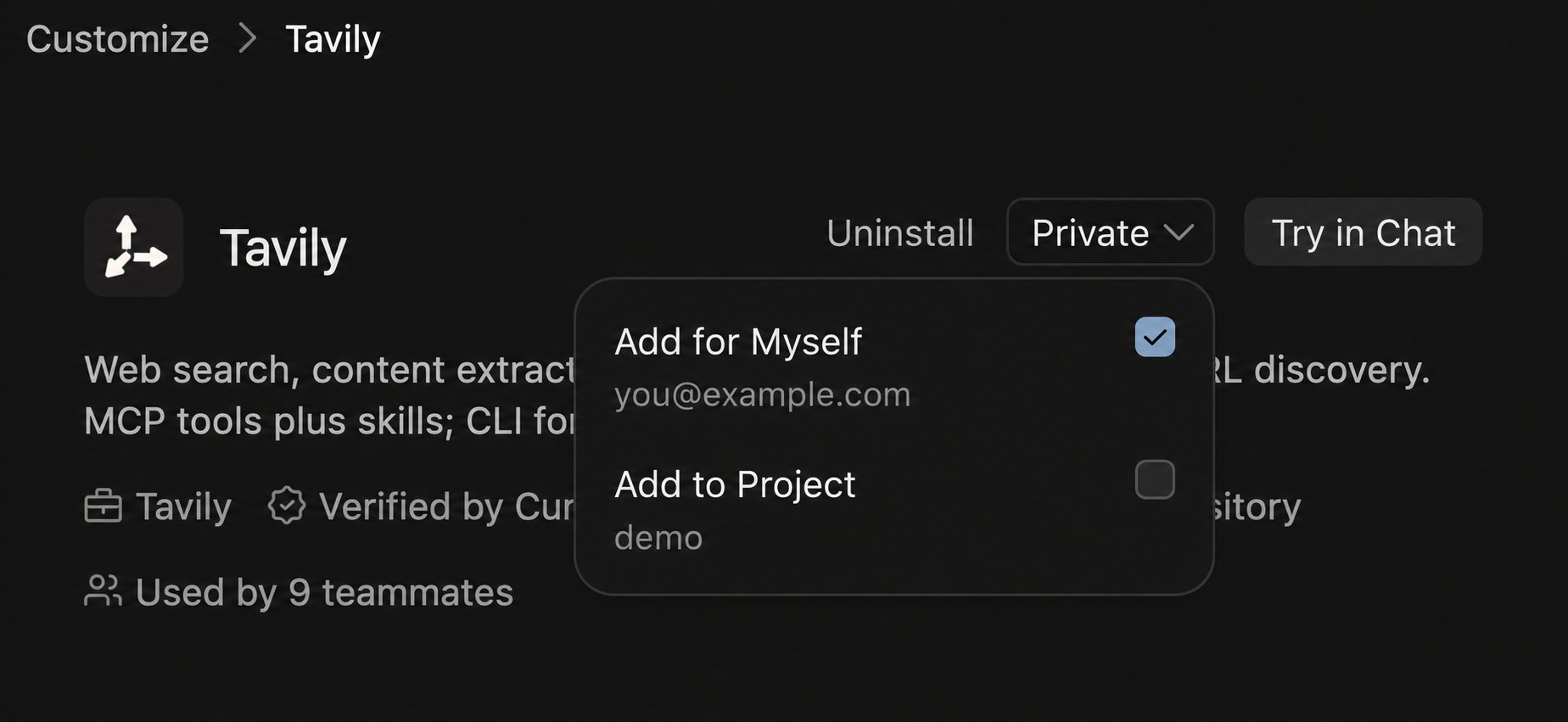
-
On the Tavily plugin page, find tavily under MCPs and click Authenticate.
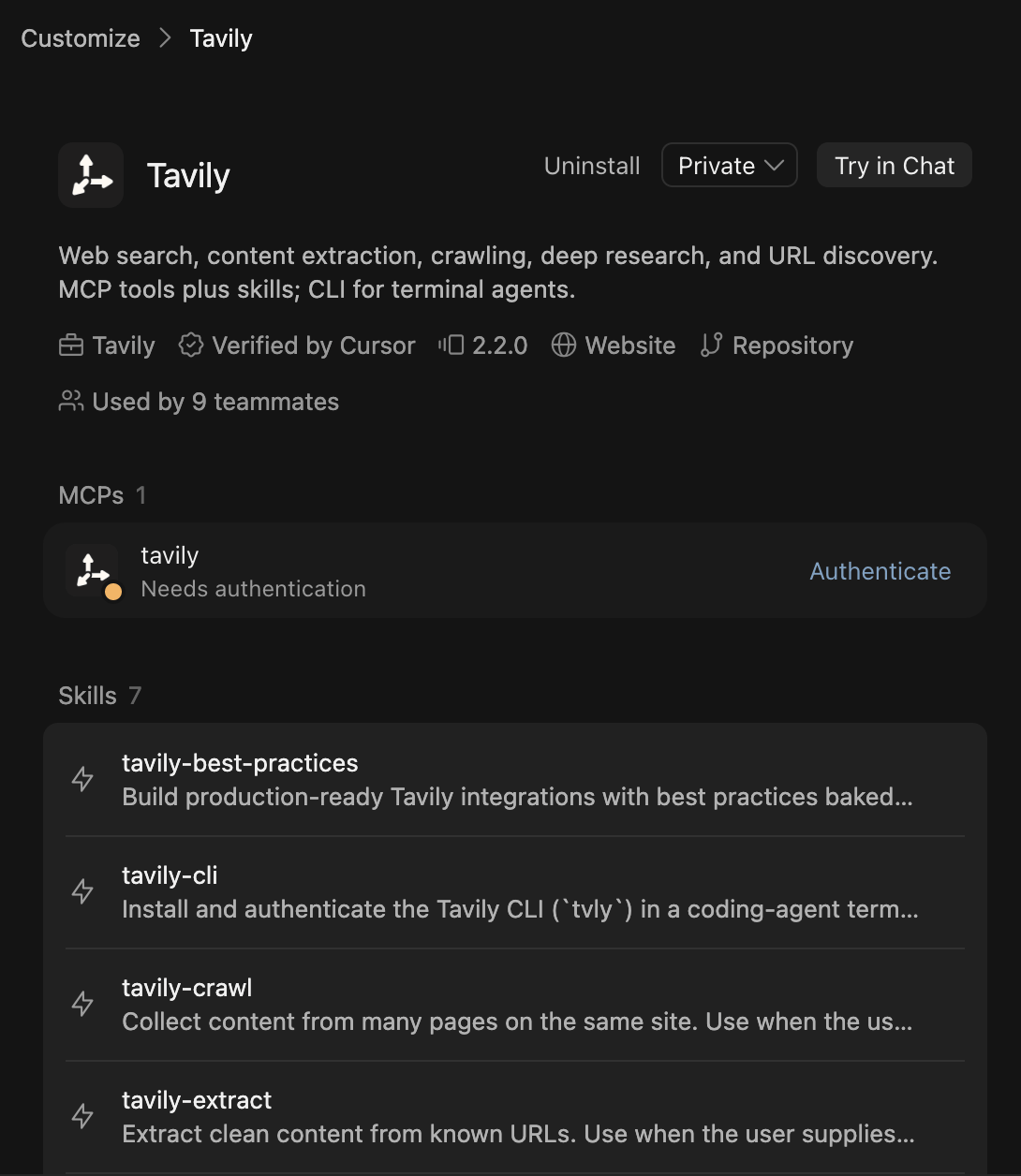
-
Complete Tavily’s sign-in flow in your browser, then return to Cursor. Confirm that the MCP connection no longer needs authentication and its tools are available.
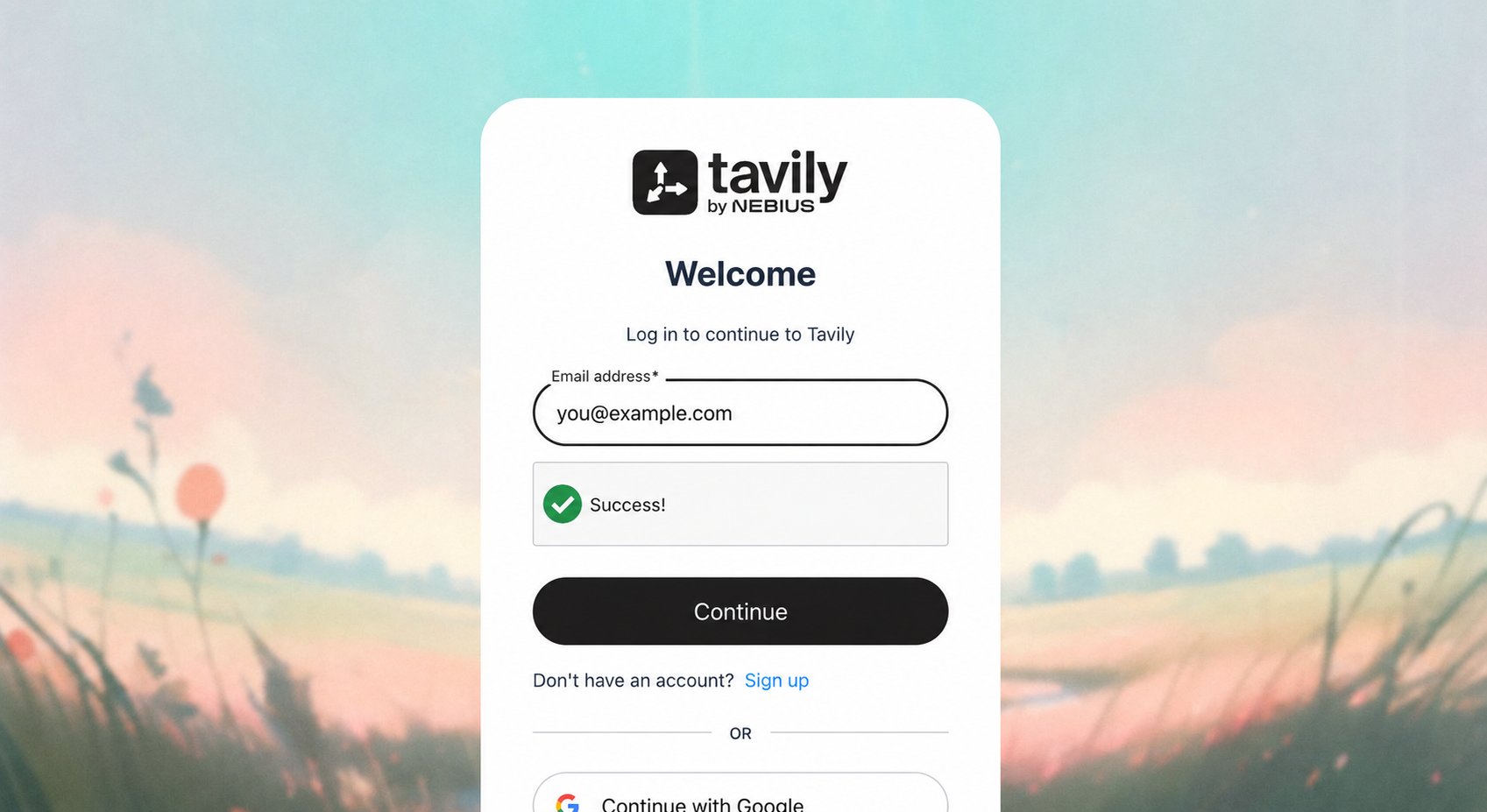
- Click Try in Chat, or open an Agent chat in your workspace. Ask Cursor to use Tavily and approve the tool call if prompted.
/tavily-setup to set up the CLI. See the plugin repository for available skills and commands.
Example usage
With your project open, try:Use the Tavily plugin in one concrete, useful way that shows why it’s valuable in this workspace.Cursor can inspect the project, choose a relevant research task, and apply what it learns. For a more specific coding task:
Use Tavily to find the official documentation for a dependency used in this workspace. Check one API usage against the installed version, fix it if needed, and cite the source.Or, in a Next.js app:
Use Tavily to find three AI product announcements from the past seven days. Add a “Latest AI News” section to the homepage with a title, one-sentence summary, date, and source link for each. Match the existing design.Look for Tavily tool calls and source links in the response to confirm it used web results.
Standalone setup
Choose one of these options if you only need individual components. The plugin already includes the remote MCP connection.Remote MCP server
Use Tavily’s hosted server without installing the plugin or running a local server.-
Create or edit
.cursor/mcp.jsonin your project, or~/.cursor/mcp.jsonfor all projects. Merge this entry into any existingmcpServersobject: - Open Customize, enable the Tavily MCP server, and complete Authenticate in your browser.
- In Agent chat, ask: “Use Tavily to find the latest documentation for this project’s framework and cite the sources.”
Authorization header with the value Bearer YOUR_TAVILY_API_KEY. Cursor supports environment-variable interpolation so you can keep the key outside the config file.
For limited Search and Extract access without signing in, add "headers": {"X-Tavily-Access-Mode": "keyless"} to the server entry instead. See keyless access for limits and supported tools.
Local MCP server
Run the Tavily MCP package on your machine. It still calls Tavily’s API.- Install Node.js 20 or later and copy a Tavily API key.
-
Add this entry to your personal
~/.cursor/mcp.json, replacing the placeholder with your key. This file configures the server across your projects. -
In Customize, enable
tavily-localand confirm its tools load. Ask Cursor to search with Tavily.
.cursor/mcp.json and supply credentials through environment variables or an ignored environment file.
CLI and Agent Skills
Use this option when Cursor should run Tavily commands in its terminal. Install Node.js 22.20 or later for the skills installer.-
Install the Tavily CLI:
-
Run
tvly loginand complete browser sign-in. OAuth login requires Node.js andnpx; you can also authenticate withTAVILY_API_KEY. -
From your project, install the Tavily Agent Skills:
-
Complete the install prompts, then restart your Cursor agent session to load the skills. Add
--globalto the install command if you want the skills across projects. Try: “Use the Tavily CLI to search for this framework’s latest migration guide and summarize the changes relevant to this project.”