> ## Documentation Index
> Fetch the complete documentation index at: https://docs.tavily.com/llms.txt
> Use this file to discover all available pages before exploring further.
# IBM watsonx Orchestrate
> Integrate Tavily's AI-powered research capabilities with IBM watsonx Orchestrate
## Overview
Tavily offers two services on IBM watsonx Orchestrate:
* **Tavily Research Agent** — An AI-powered research agent that conducts comprehensive web research using coordinated parallel sub-agents to deliver detailed, citation-backed reports on complex topics.
* **Tavily Search API** — Real-time web search optimized for AI agents and LLMs.
Both services are available through the IBM Cloud catalog and can be procured using IBM credits.
## Setup Guide
### Step 1: Create a Tavily Instance on IBM Cloud
1. Navigate to [IBM Cloud](https://cloud.ibm.com/)
2. In the search bar, type "Tavily" to find the available services
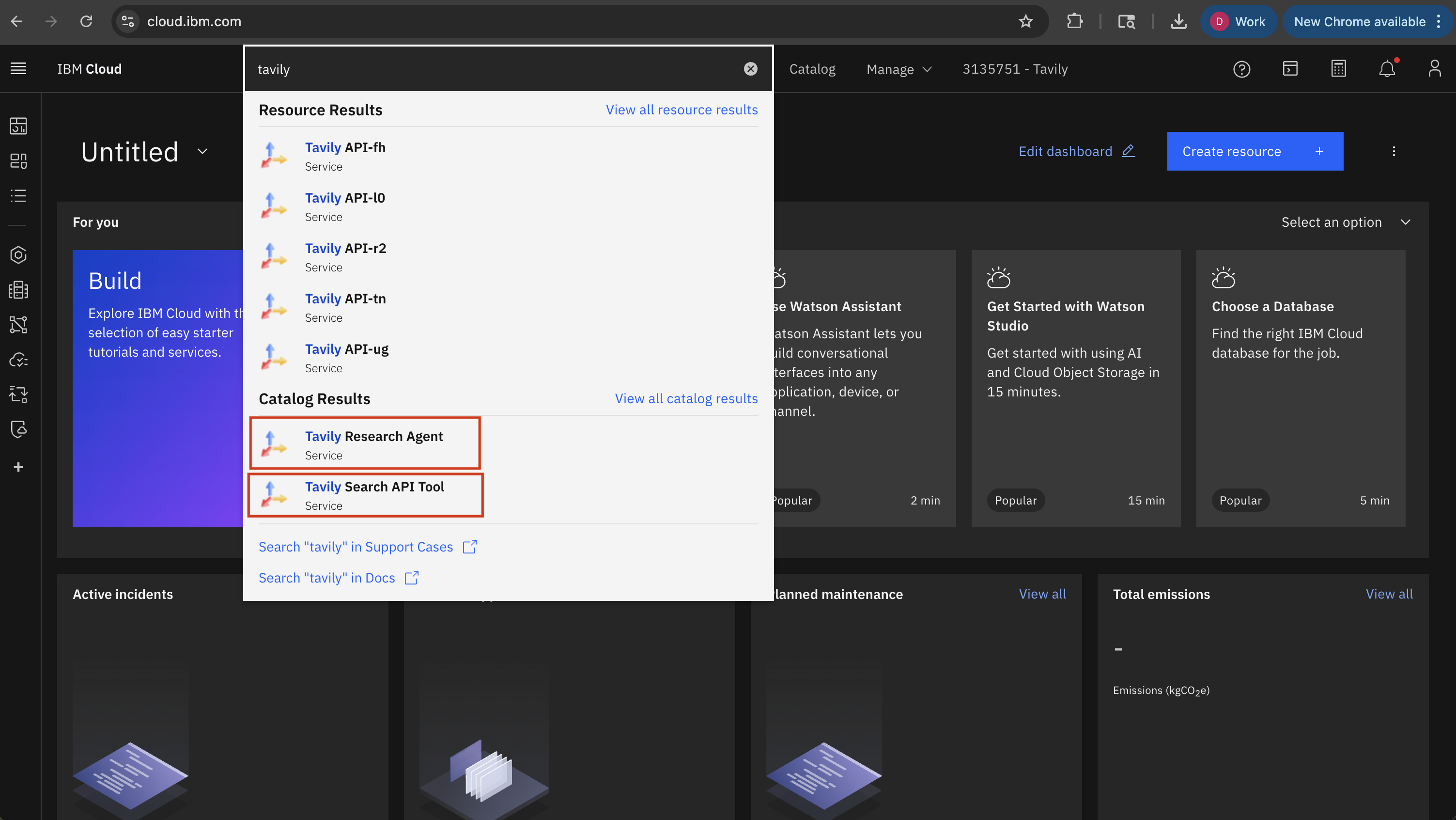 3. Select either **Tavily Search API** or **Tavily Research Agent** depending on your needs
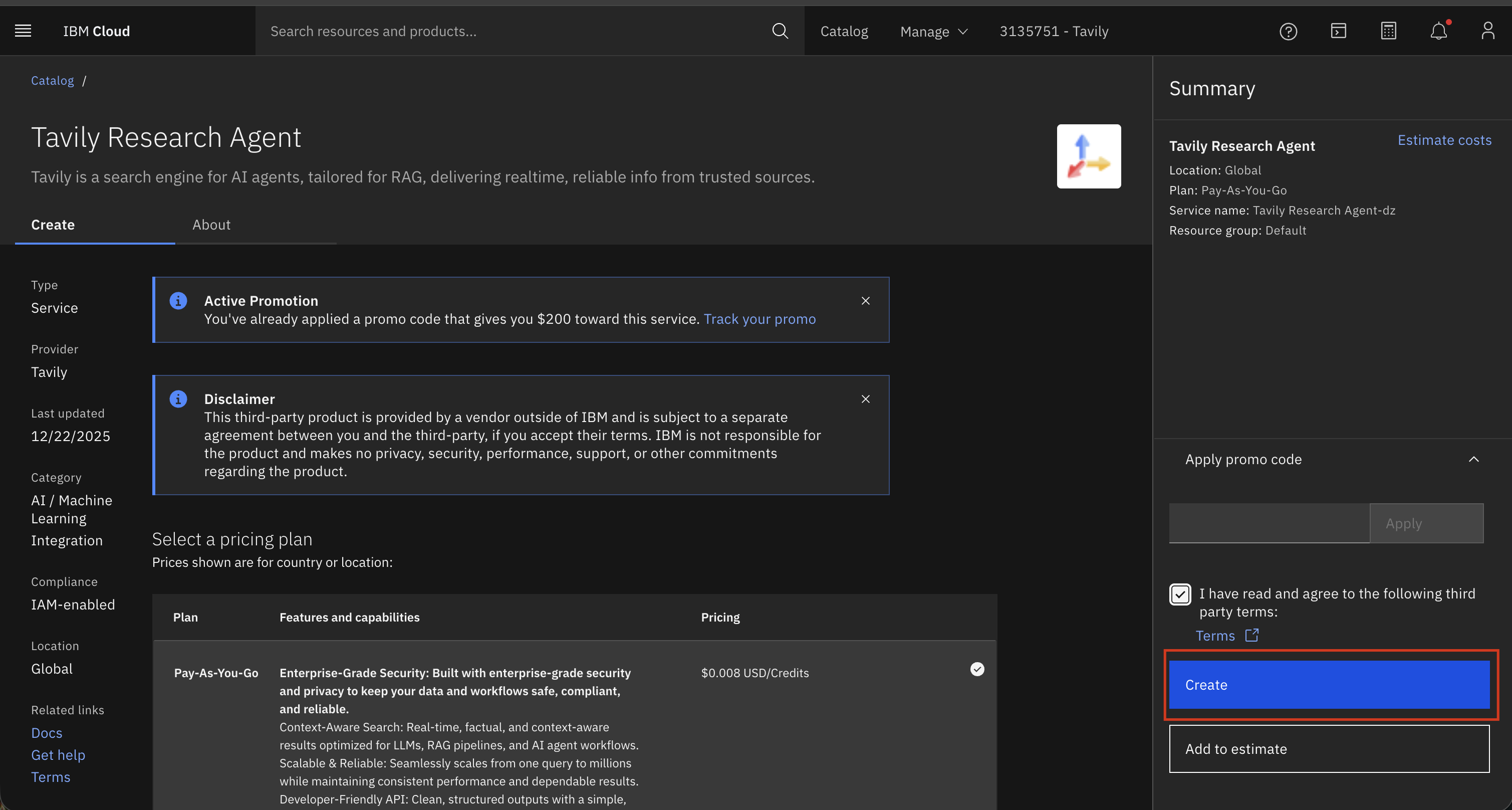
4. Click **Create** to provision a new instance
3. Select either **Tavily Search API** or **Tavily Research Agent** depending on your needs
4. Click **Create** to provision a new instance
 ### Step 2: Copy Your Bearer Token
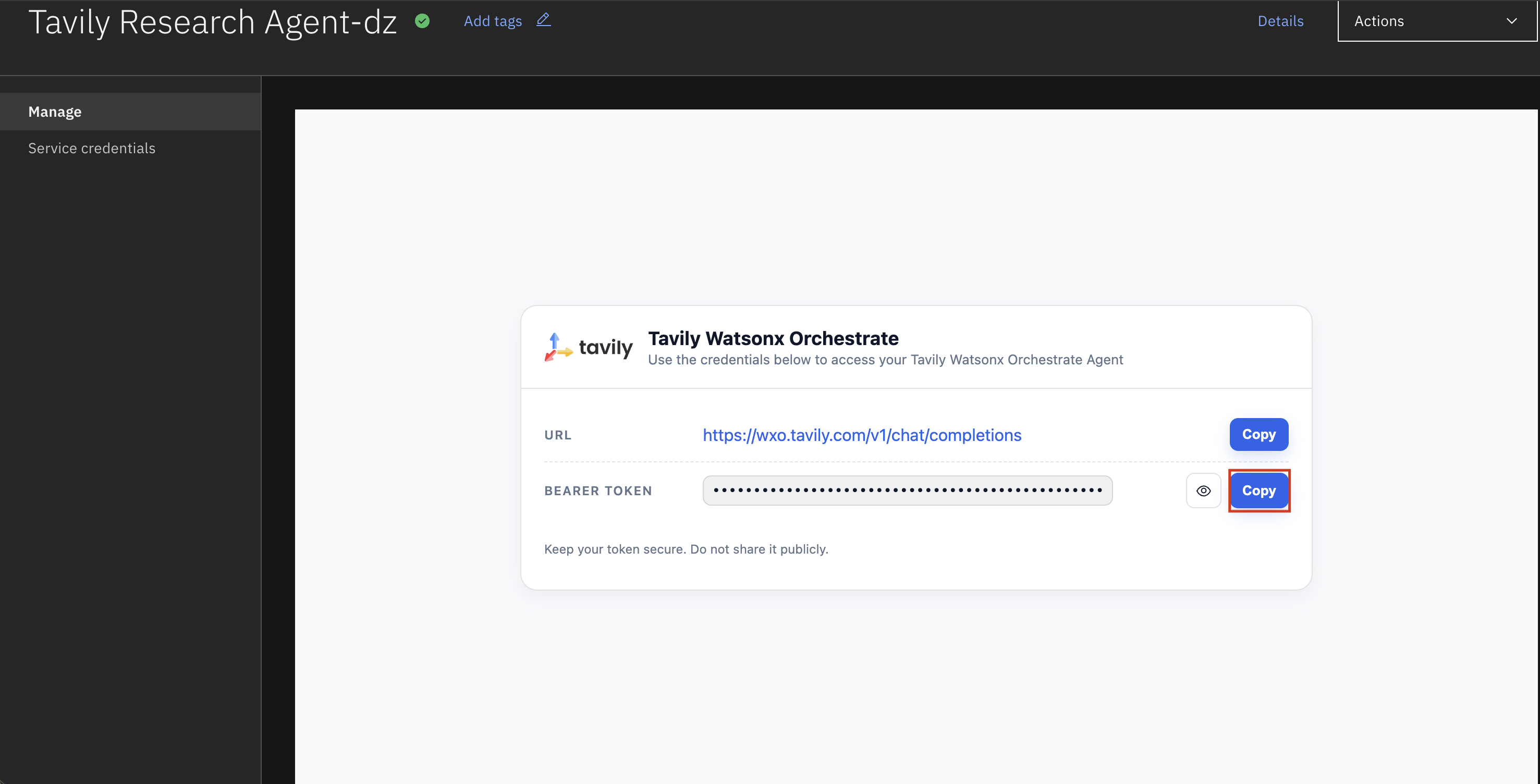
Once your instance is created, copy the bearer token from the credentials section. You'll need this to connect the agent in watsonx Orchestrate.
### Step 2: Copy Your Bearer Token
Once your instance is created, copy the bearer token from the credentials section. You'll need this to connect the agent in watsonx Orchestrate.
 ### Step 3: Add Tavily to watsonx Orchestrate
1. Navigate to [watsonx Orchestrate](https://dl.watson-orchestrate.ibm.com/chat)
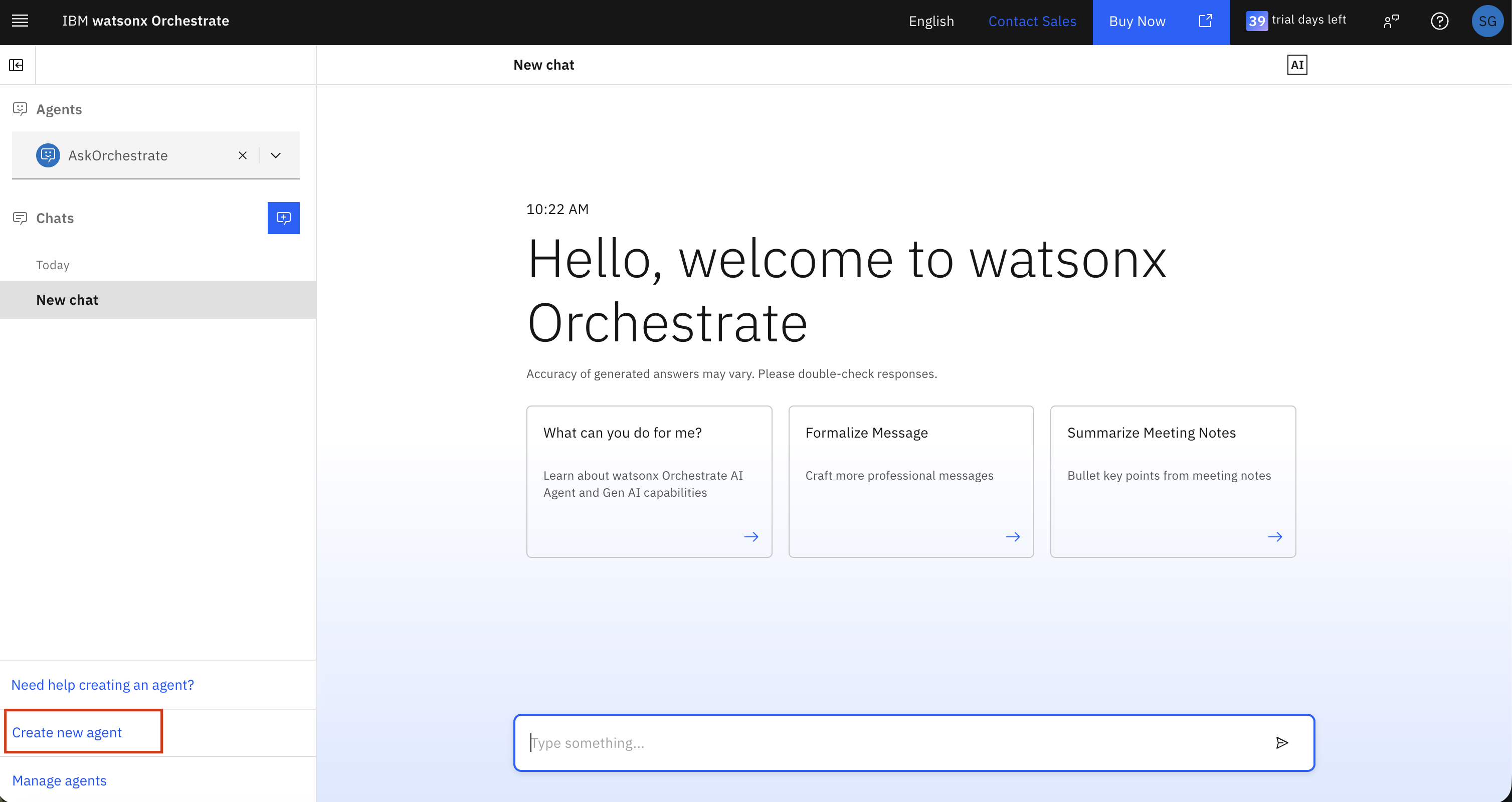
2. Create a new agent
### Step 3: Add Tavily to watsonx Orchestrate
1. Navigate to [watsonx Orchestrate](https://dl.watson-orchestrate.ibm.com/chat)
2. Create a new agent
 3. Name your agent
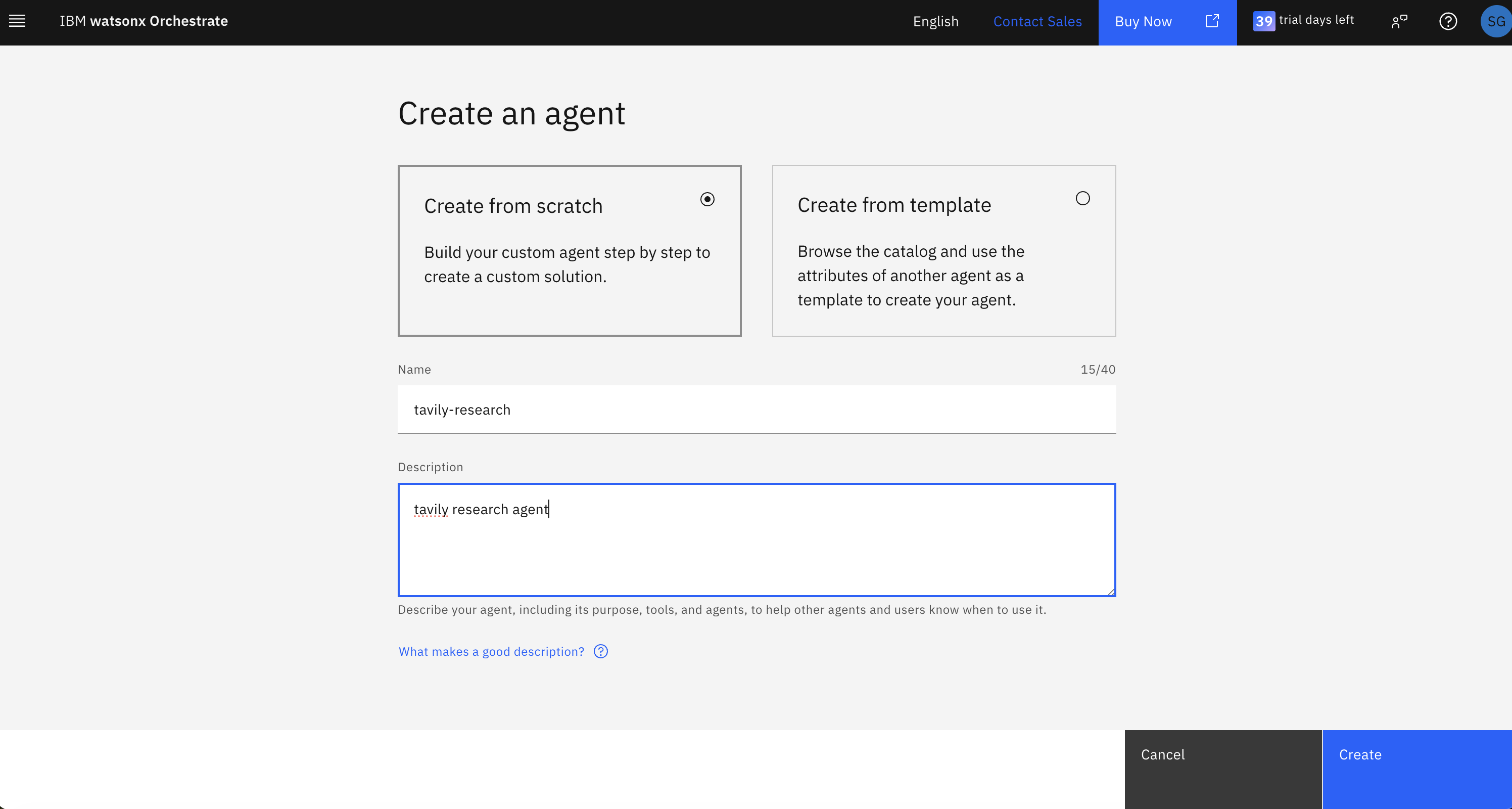 4. Add a collaborator agent
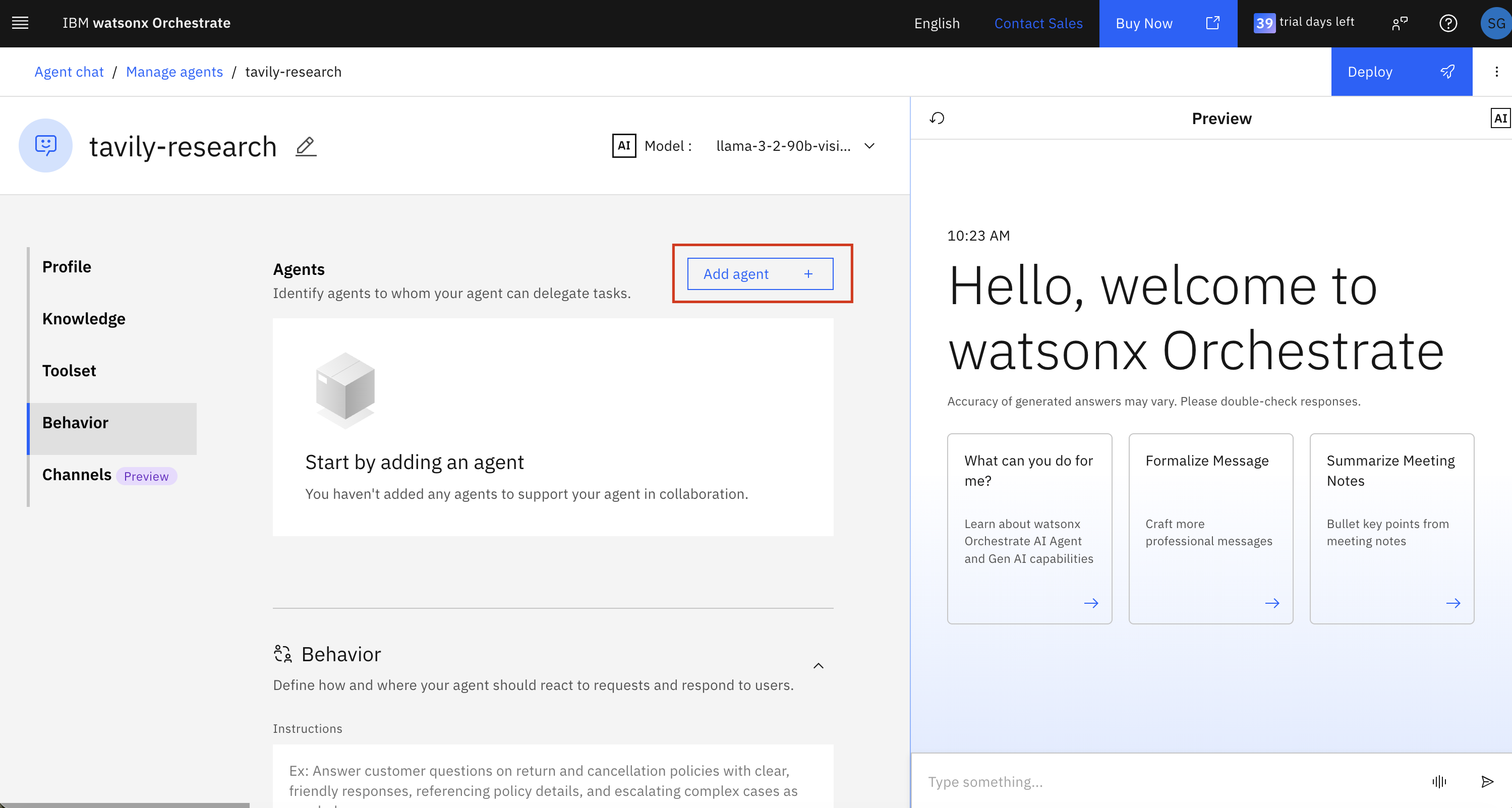 5. Select **Tavily Research Agent** from the partner agents list
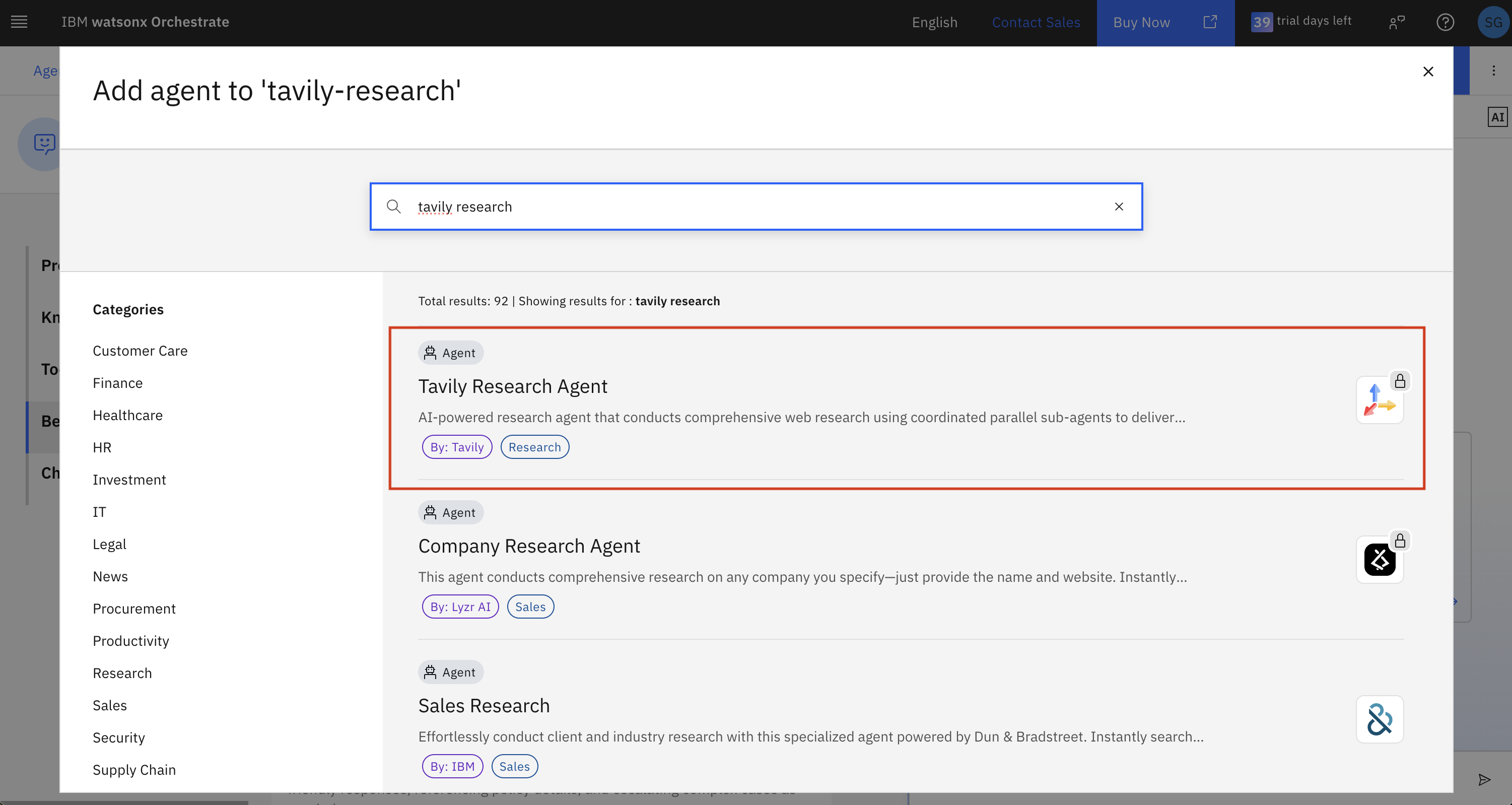 6. Review the agent details and click **Add as collaborator**
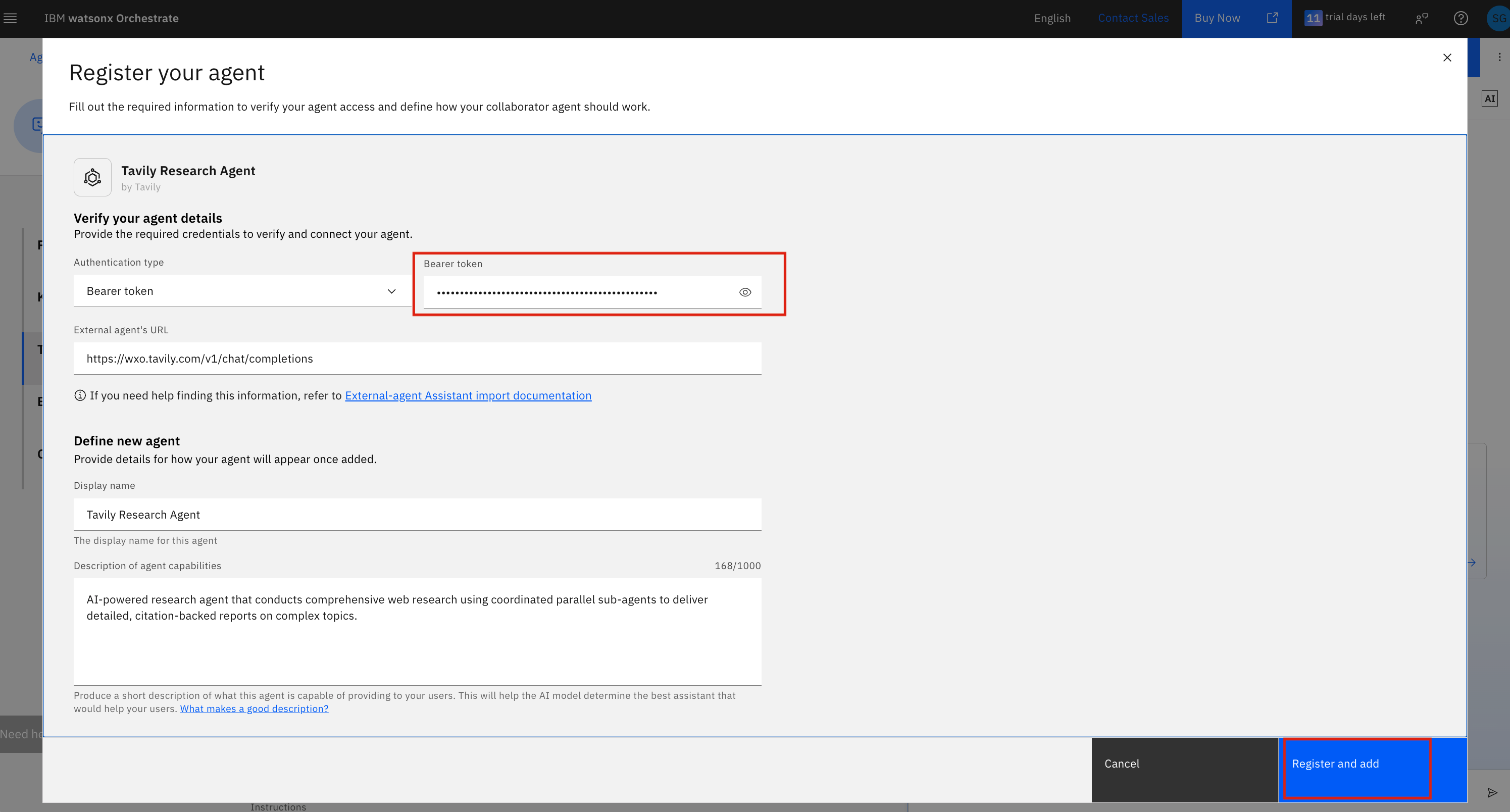
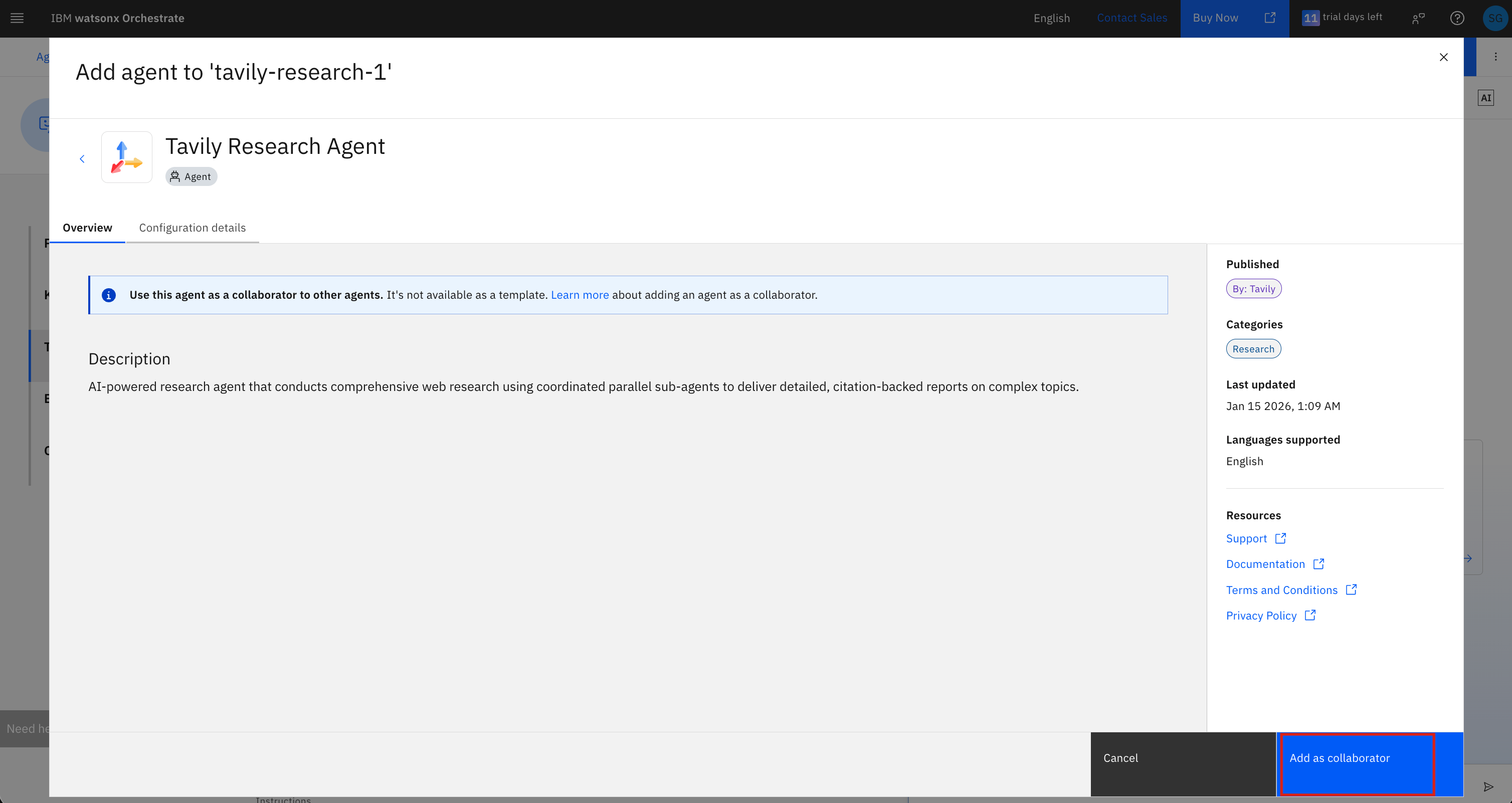 7. Enter your bearer token (from Step 2) in the **Bearer token** field and click **Register and add**
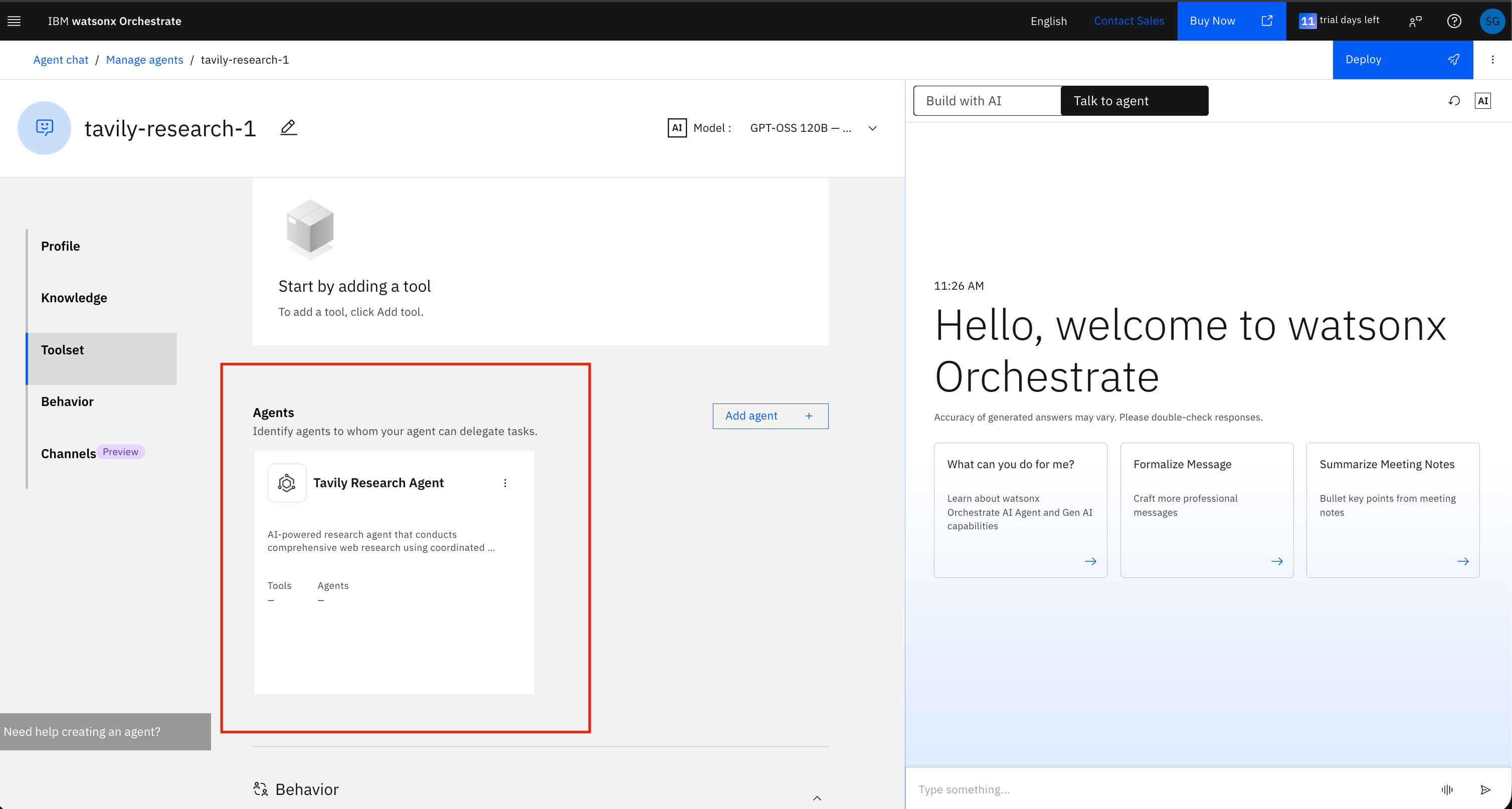
 8. The Tavily Research Agent will now appear in your agent's **Toolset** under the Agents section
 ### Step 4: Try It Out
Ask a question in the chat that requires real-time web research, and watsonx Orchestrate will automatically hand off to the Tavily Research Agent.
### Step 4: Try It Out
Ask a question in the chat that requires real-time web research, and watsonx Orchestrate will automatically hand off to the Tavily Research Agent.
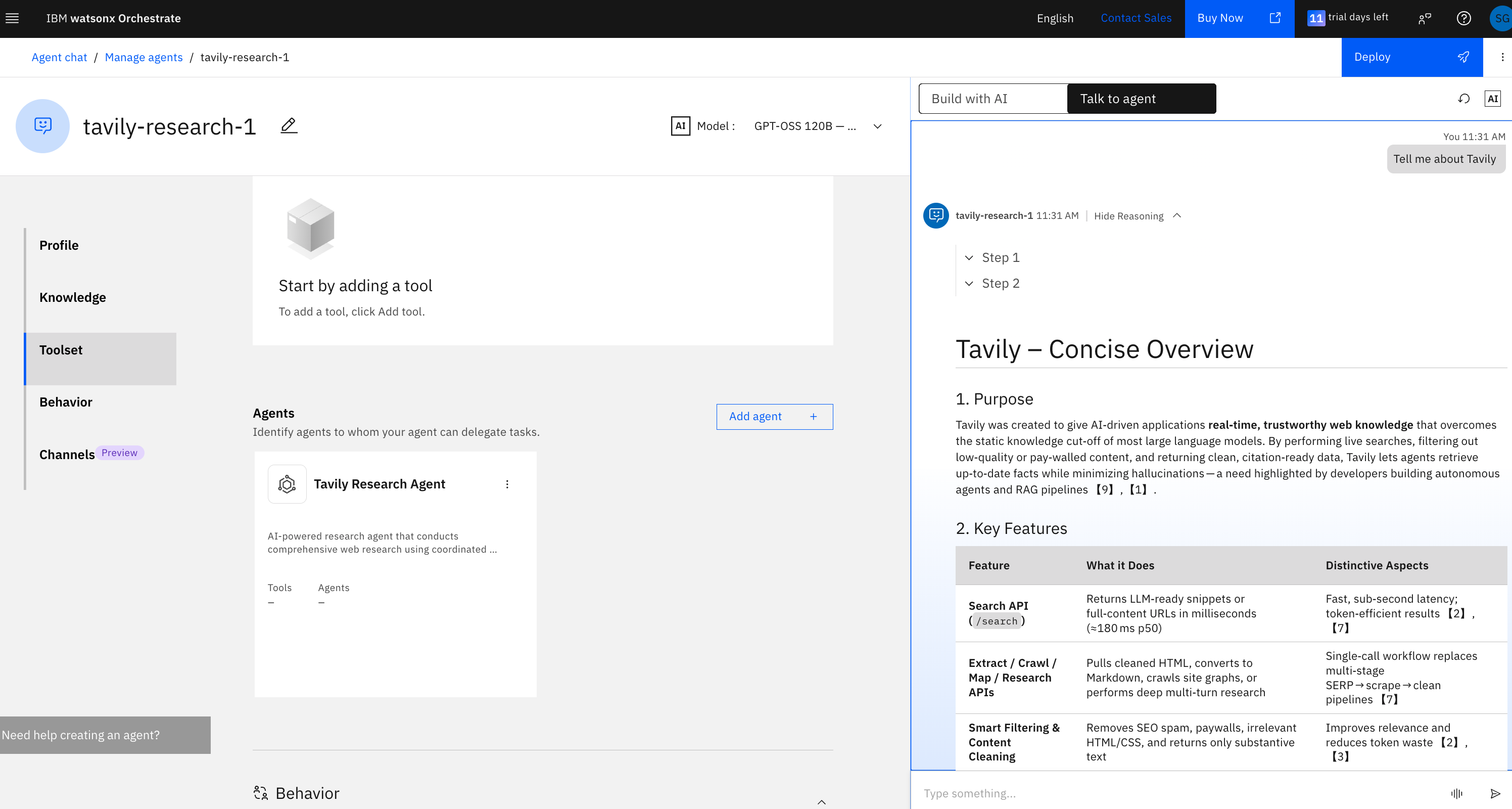 Your Tavily Research Agent is now ready to use within watsonx Orchestrate.
## Resources
* [IBM watsonx Orchestrate Documentation](https://www.ibm.com/docs/en/watsonx/watson-orchestrate/base?topic=agents-adding-orchestration#adding-a-collaborator-agent)
* [Partner Agents Catalog](https://www.ibm.com/docs/en/watsonx/watson-orchestrate/base?topic=catalog-partner-agents)
Your Tavily Research Agent is now ready to use within watsonx Orchestrate.
## Resources
* [IBM watsonx Orchestrate Documentation](https://www.ibm.com/docs/en/watsonx/watson-orchestrate/base?topic=agents-adding-orchestration#adding-a-collaborator-agent)
* [Partner Agents Catalog](https://www.ibm.com/docs/en/watsonx/watson-orchestrate/base?topic=catalog-partner-agents)