> ## Documentation Index
> Fetch the complete documentation index at: https://docs.tavily.com/llms.txt
> Use this file to discover all available pages before exploring further.
# Databricks
> Integrate Tavily MCP Server with Databricks for real-time web search and RAG capabilities.
## Overview
Tavily MCP Server is available on [Databricks Marketplace](https://marketplace.databricks.com/details/3709f418-1ed3-42a8-a753-38d06ce281c7/Tavily_Tavily-MCP-Server), enabling one-click installation that creates a secure Unity Catalog connection for authenticated access. Once installed, Tavily MCP can be used programmatically in your agent code (LangGraph, OpenAI, etc.) through Databricks-managed proxy endpoints, grounding your AI agents with real-time web search, extraction, crawling, and mapping.
## Prerequisites
* [Databricks workspace](https://www.databricks.com/) with the **Managed MCP Servers** preview enabled. See [Manage Databricks previews](https://docs.databricks.com/aws/en/admin/workspace-settings/manage-previews).
* `CREATE CONNECTION` privilege on the Unity Catalog metastore
* [Tavily API Key](https://app.tavily.com/home) for authenticating the Tavily MCP connection (via bearer token)
## Setup
### Install from Databricks Marketplace
In your Databricks workspace, go to **Marketplace** and search for **Tavily MCP Server**.
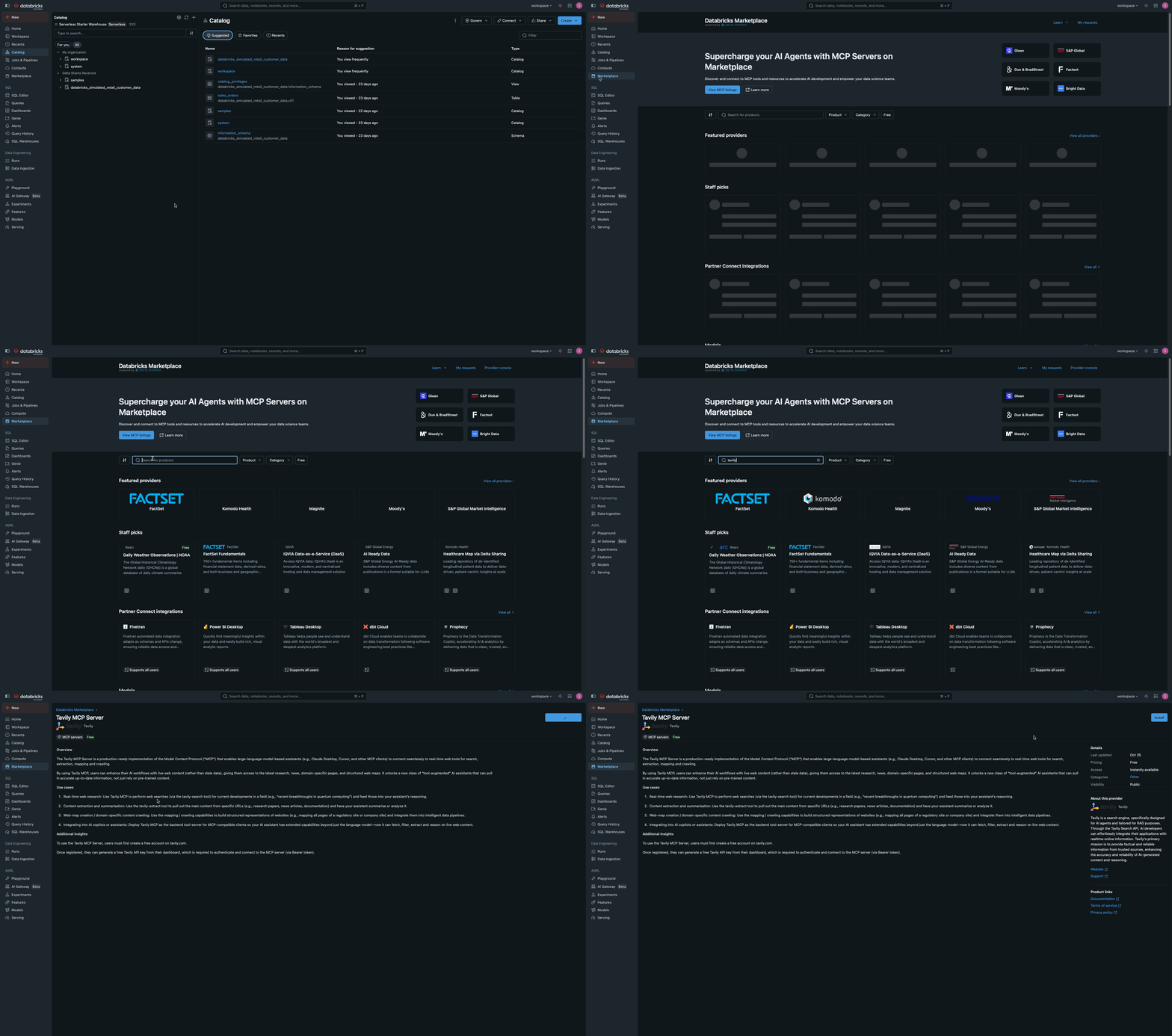 Click **Install** to install the Tavily MCP Server. In the installation dialog, configure the connection settings:
* **Connection name**: Enter a name for the Unity Catalog connection (for example, `tavily_mcp_connection`).
* **Host**: Pre-populated for Tavily.
* **Base path**: Pre-populated for Tavily.
* **Bearer token**: Enter your Tavily API Key as the bearer token.
Click **Install** to install the Tavily MCP Server. In the installation dialog, configure the connection settings:
* **Connection name**: Enter a name for the Unity Catalog connection (for example, `tavily_mcp_connection`).
* **Host**: Pre-populated for Tavily.
* **Base path**: Pre-populated for Tavily.
* **Bearer token**: Enter your Tavily API Key as the bearer token.
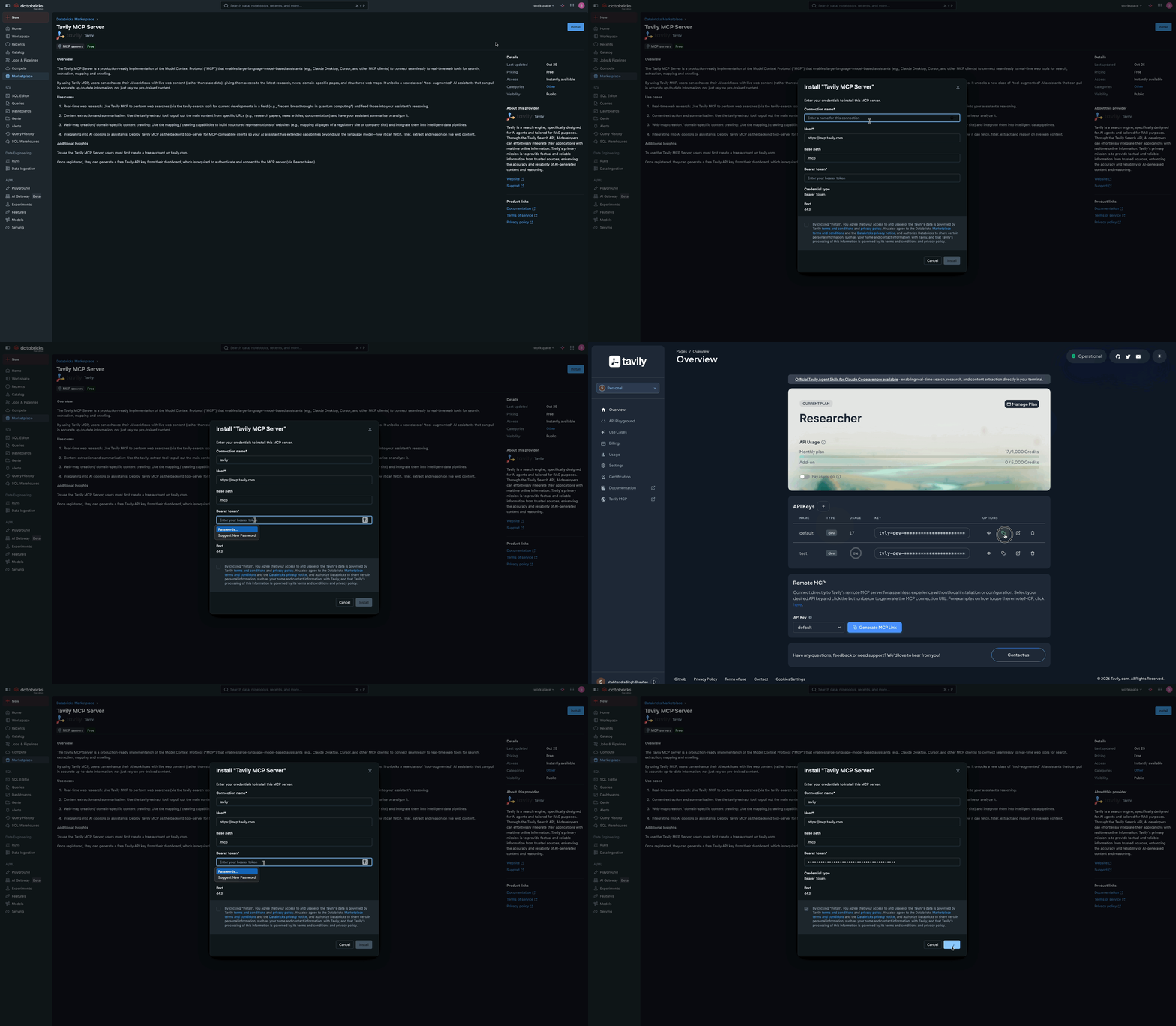 Navigate to **Unity Catalog** > **Connect** > **Connections** and verify that the connection has been created successfully.
 ### Share the MCP server connection
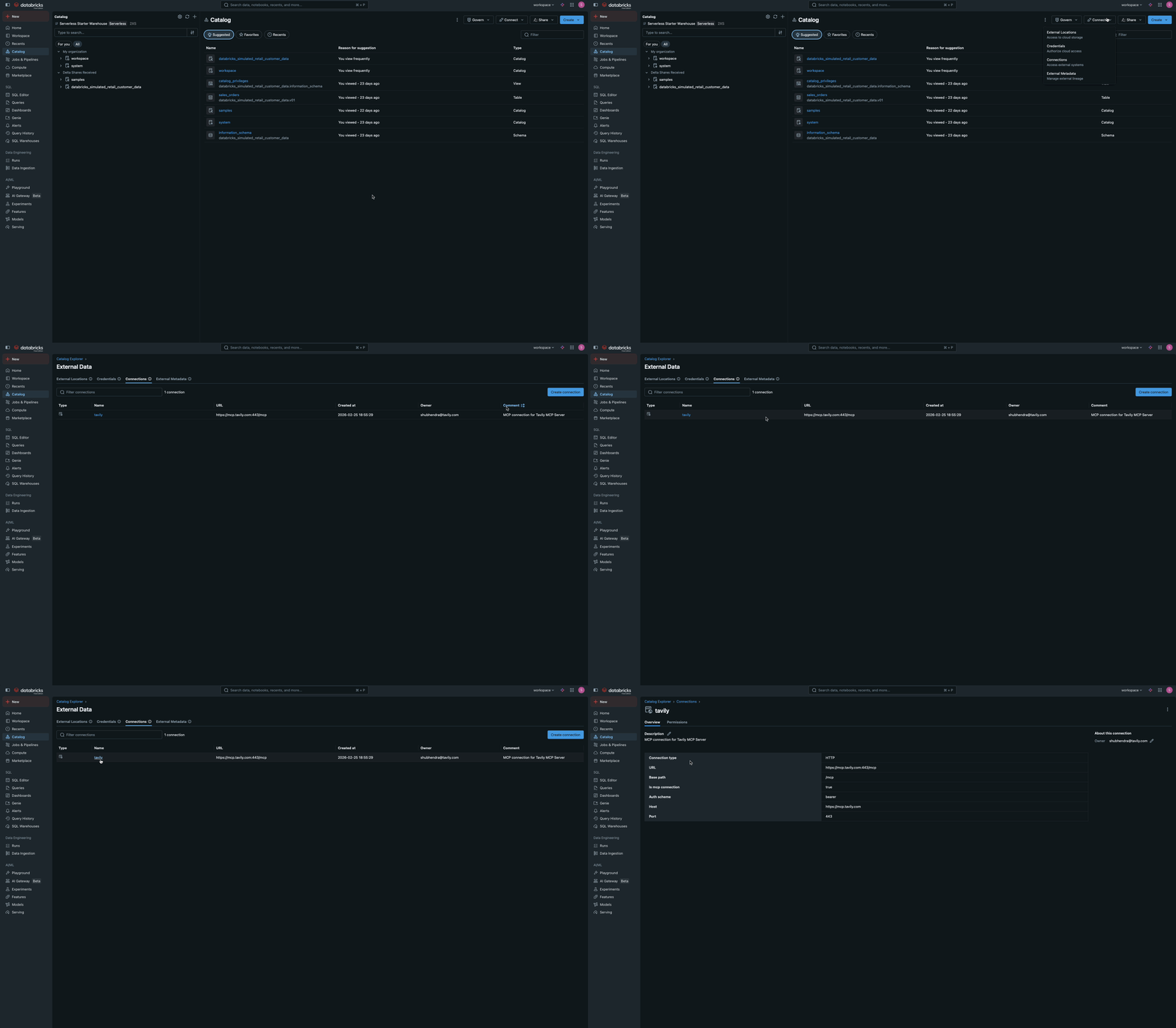
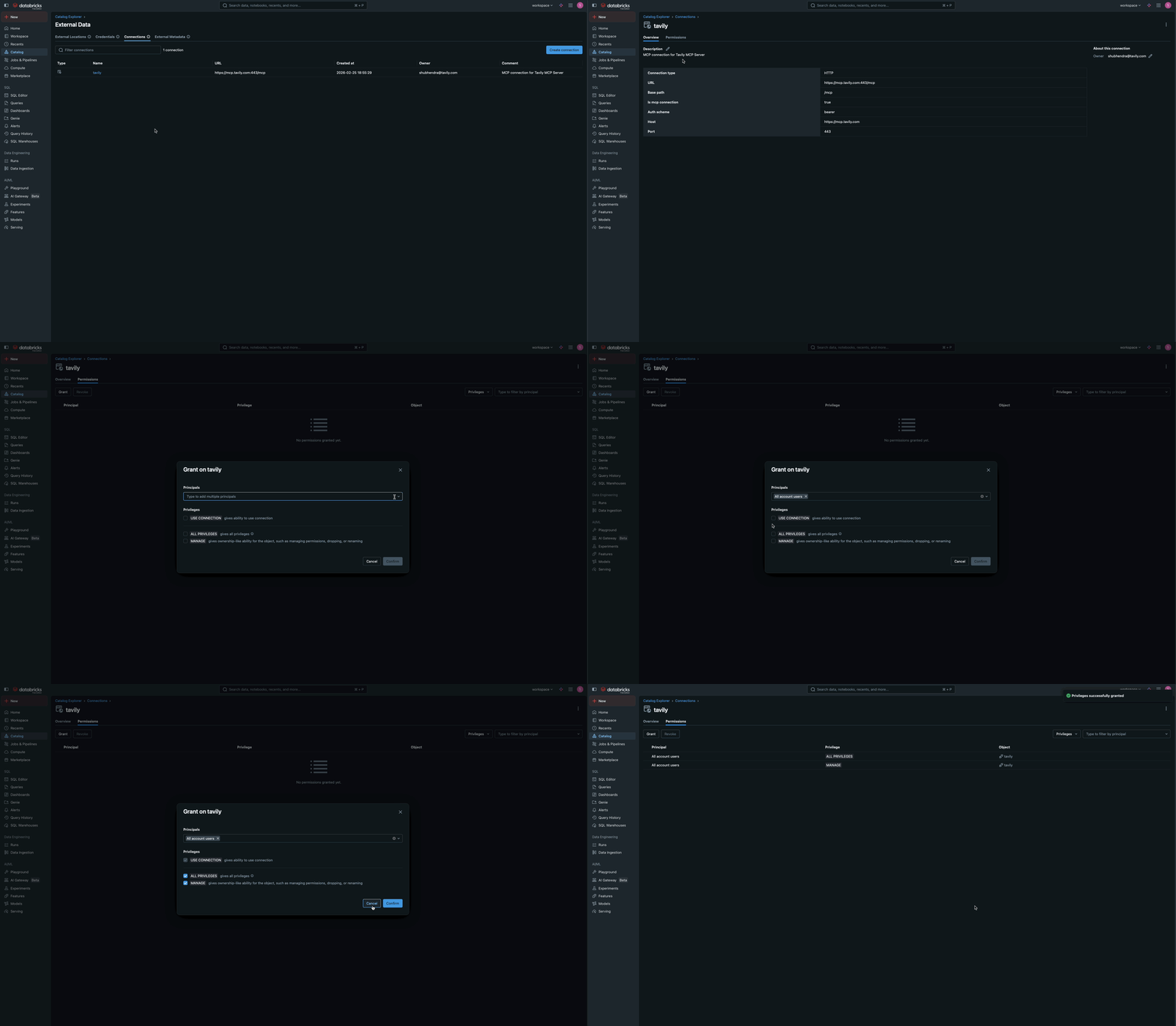
Navigate to **Unity Catalog** > **Connect** > **Connections** and click on the connection you created earlier (for example, `tavily_mcp_connection`).
### Share the MCP server connection
Navigate to **Unity Catalog** > **Connect** > **Connections** and click on the connection you created earlier (for example, `tavily_mcp_connection`).
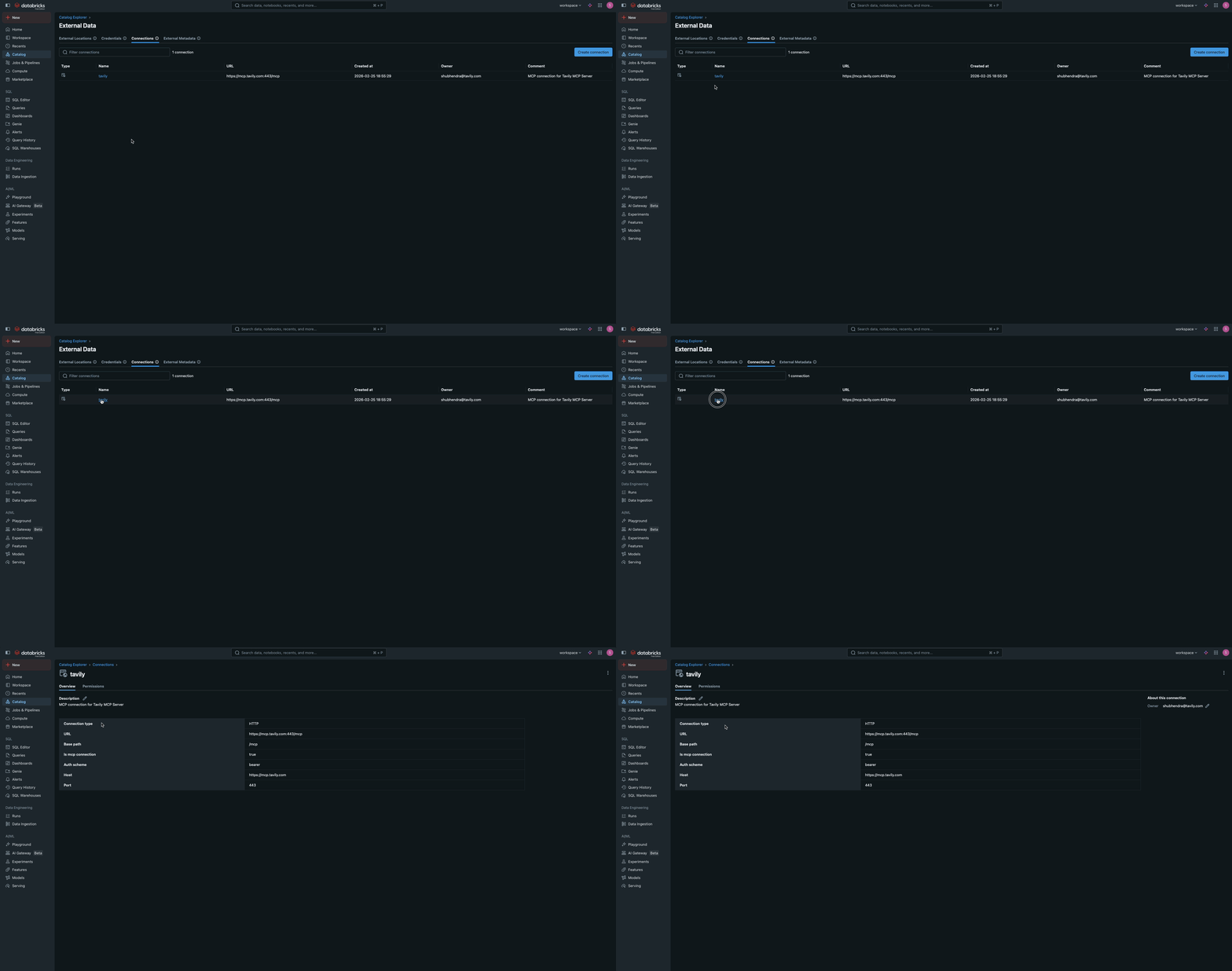 Grant `USE CONNECTION` privileges to identity principals that need to use the Tavily MCP server connection. In your workspace, go to **Permissions** tab and grant **`USE CONNECTION`** to the identity principals that need to use the Tavily MCP server connection.
 ### Test Tavily MCP Server within Databricks
You can test the Tavily MCP server directly within Databricks without writing any code.
**Using AI Playground:**
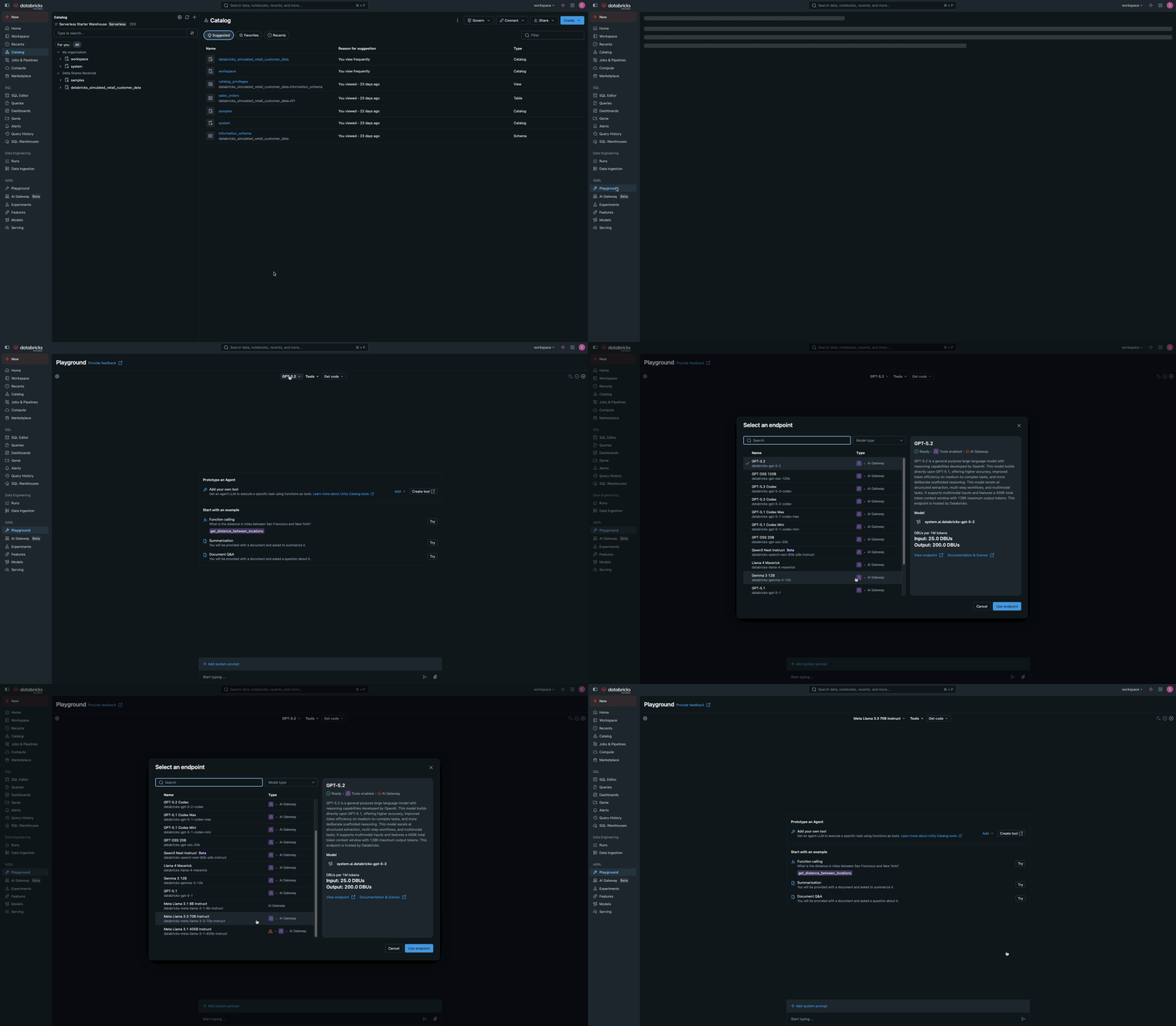
Go to **AI Playground** in your Databricks workspace and choose a model with
the **Tools enabled** label.
### Test Tavily MCP Server within Databricks
You can test the Tavily MCP server directly within Databricks without writing any code.
**Using AI Playground:**
Go to **AI Playground** in your Databricks workspace and choose a model with
the **Tools enabled** label.
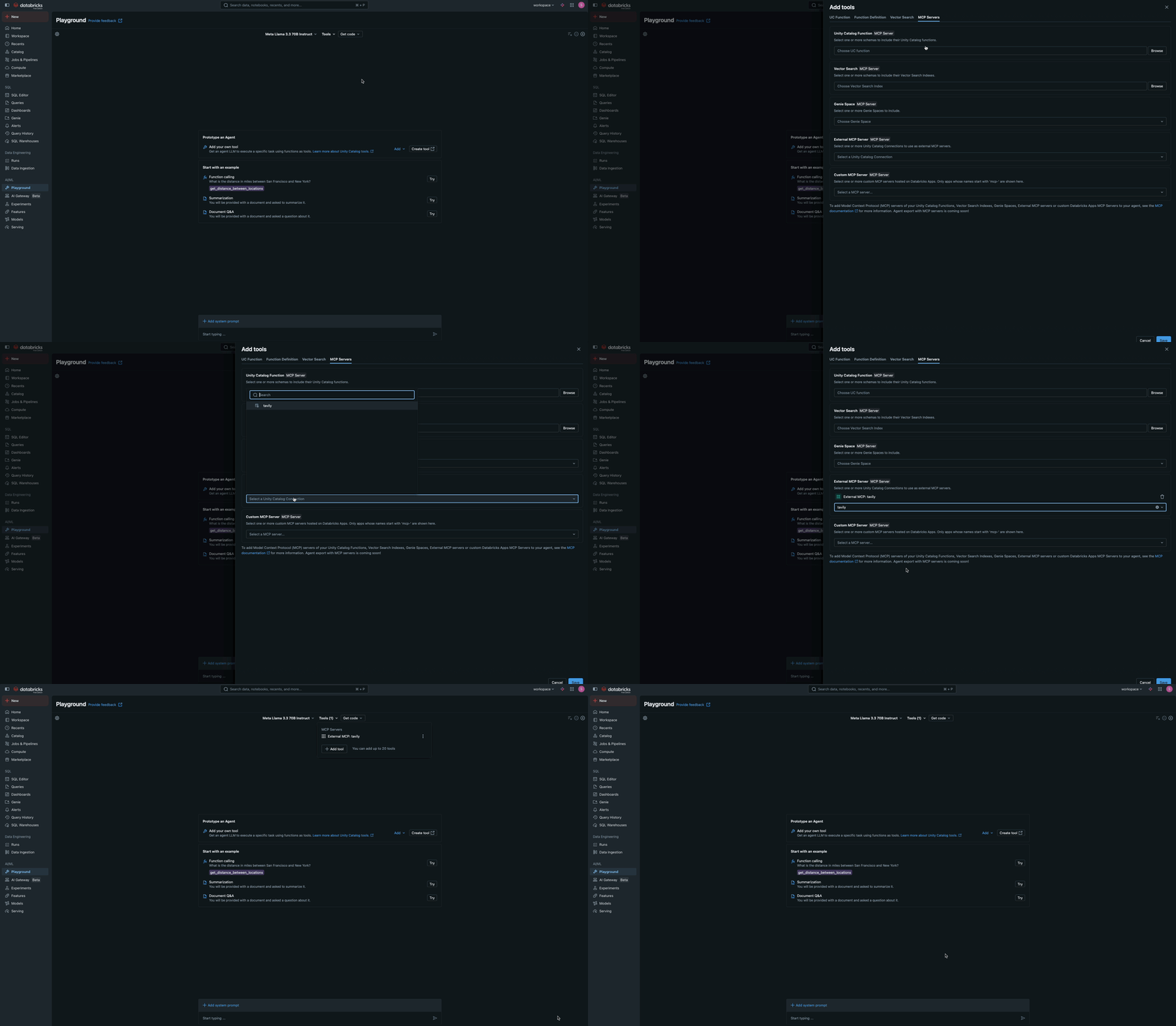
 Click **Tools** tab and select **+ Add tool** and select **MCP Servers** from the available tool options. In the MCP Servers section, select **External MCP servers** to
browse available connections, and choose the Unity Catalog connection you
installed earlier (for example, `tavily_mcp_connection`).
Click **Tools** tab and select **+ Add tool** and select **MCP Servers** from the available tool options. In the MCP Servers section, select **External MCP servers** to
browse available connections, and choose the Unity Catalog connection you
installed earlier (for example, `tavily_mcp_connection`).
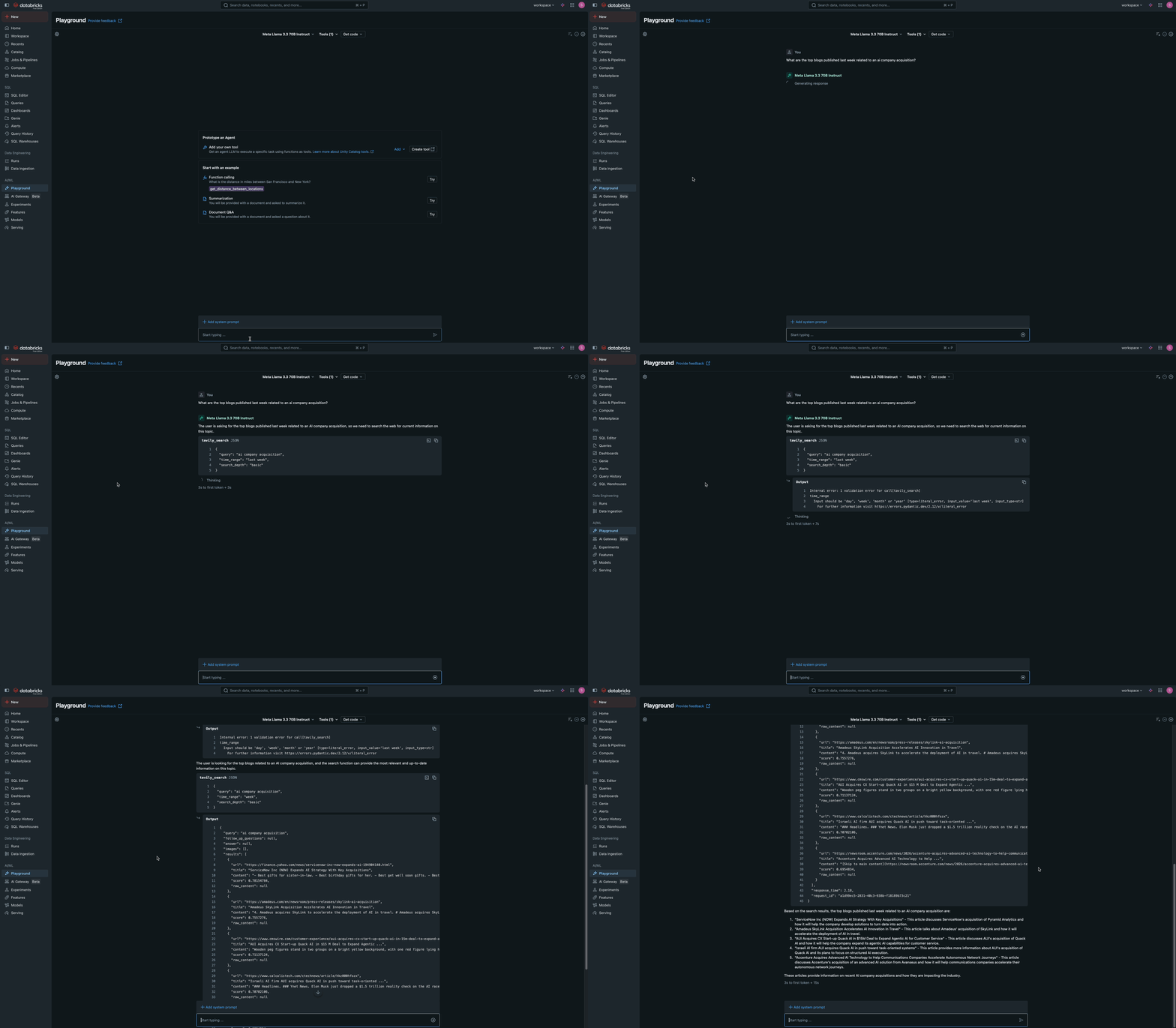
 Chat with the LLM to test how it interacts with Tavily MCP tools.
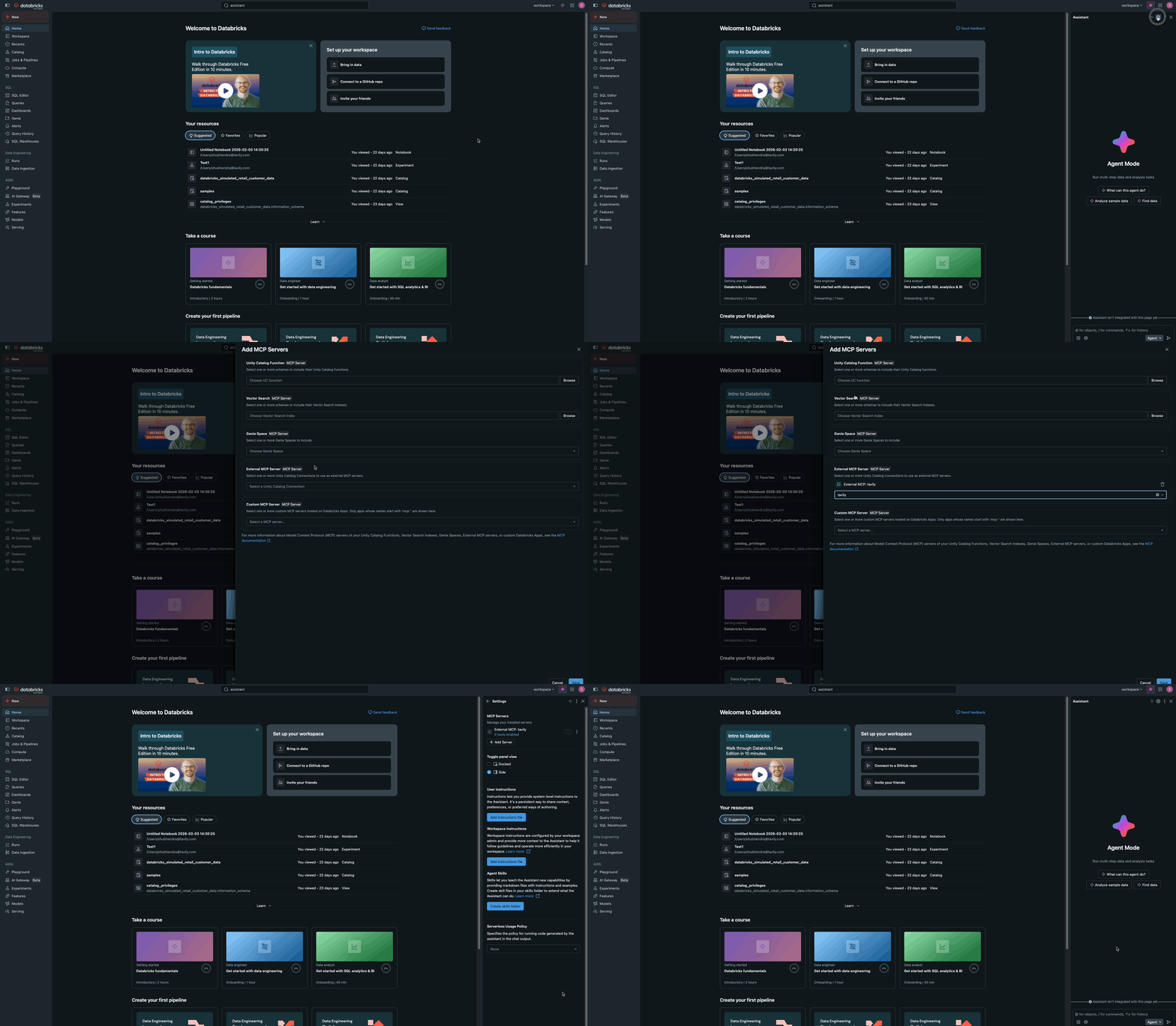
 ### Add Tavily MCP Server to Databricks Assistant
Go to **Databricks Assistant** in your Databricks workspace and click on the **Settings** icon.
In **MCP Servers** section, select **+ Add MCP Server**. Go to **External MCP servers** dropdown and choose the Unity Catalog connection you installed earlier (for example, `tavily_mcp_connection`).
### Add Tavily MCP Server to Databricks Assistant
Go to **Databricks Assistant** in your Databricks workspace and click on the **Settings** icon.
In **MCP Servers** section, select **+ Add MCP Server**. Go to **External MCP servers** dropdown and choose the Unity Catalog connection you installed earlier (for example, `tavily_mcp_connection`).
 ### Use Tavily MCP in Your Agent Code
After installation, use Tavily MCP programmatically in your agent code by connecting to the proxy URL. The Databricks proxy makes external servers behave like managed MCP servers, handling authentication and token management.
Add the Tavily MCP proxy endpoint to your `MANAGED_MCP_SERVER_URLS` list. External MCP servers are proxied as managed servers, allowing you to use the same API for both:
```python theme={null}
from databricks.sdk import WorkspaceClient
from databricks_mcp import DatabricksMCPClient
# Initialize workspace client
workspace_client = WorkspaceClient()
host = workspace_client.config.host
# External MCP servers are proxied as managed servers, allowing you
# to use the same API for both managed and external servers
MANAGED_MCP_SERVER_URLS = [
f"{host}/api/2.0/mcp/functions/system/ai", # Default managed MCP
f"{host}/api/2.0/mcp/external/tavily_mcp_connection" # Tavily MCP proxy
]
```
Pass the proxy URL to the `managed_server_urls` parameter to create tools from both managed and external (proxied) servers:
```python theme={null}
# Use with agents — external servers work just like managed ones
import asyncio
from your_agent_code import create_mcp_tools # Your agent's tool creation function
# Create tools from both managed and external (proxied) servers
mcp_tools = asyncio.run(
create_mcp_tools(
ws=workspace_client,
managed_server_urls=MANAGED_MCP_SERVER_URLS
)
)
```
You can also call Tavily tools directly using the Databricks MCP Client:
```python theme={null}
# Direct tool call using DatabricksMCPClient
mcp_client = DatabricksMCPClient(
server_url=f"{host}/api/2.0/mcp/external/tavily_mcp_connection",
workspace_client=workspace_client
)
# List available tools
tools = mcp_client.list_tools()
print(f"Available tools: {[tool.name for tool in tools]}")
# Call a tool
response = mcp_client.call_tool(
"tavily_search",
{"query": "latest AI research breakthroughs"}
)
print(response.content[0].text)
```
## Resources
* [Tavily MCP Server on Databricks Marketplace](https://marketplace.databricks.com/details/3709f418-1ed3-42a8-a753-38d06ce281c7/Tavily_Tavily-MCP-Server)
* [Tavily MCP Documentation](/documentation/mcp)
### Use Tavily MCP in Your Agent Code
After installation, use Tavily MCP programmatically in your agent code by connecting to the proxy URL. The Databricks proxy makes external servers behave like managed MCP servers, handling authentication and token management.
Add the Tavily MCP proxy endpoint to your `MANAGED_MCP_SERVER_URLS` list. External MCP servers are proxied as managed servers, allowing you to use the same API for both:
```python theme={null}
from databricks.sdk import WorkspaceClient
from databricks_mcp import DatabricksMCPClient
# Initialize workspace client
workspace_client = WorkspaceClient()
host = workspace_client.config.host
# External MCP servers are proxied as managed servers, allowing you
# to use the same API for both managed and external servers
MANAGED_MCP_SERVER_URLS = [
f"{host}/api/2.0/mcp/functions/system/ai", # Default managed MCP
f"{host}/api/2.0/mcp/external/tavily_mcp_connection" # Tavily MCP proxy
]
```
Pass the proxy URL to the `managed_server_urls` parameter to create tools from both managed and external (proxied) servers:
```python theme={null}
# Use with agents — external servers work just like managed ones
import asyncio
from your_agent_code import create_mcp_tools # Your agent's tool creation function
# Create tools from both managed and external (proxied) servers
mcp_tools = asyncio.run(
create_mcp_tools(
ws=workspace_client,
managed_server_urls=MANAGED_MCP_SERVER_URLS
)
)
```
You can also call Tavily tools directly using the Databricks MCP Client:
```python theme={null}
# Direct tool call using DatabricksMCPClient
mcp_client = DatabricksMCPClient(
server_url=f"{host}/api/2.0/mcp/external/tavily_mcp_connection",
workspace_client=workspace_client
)
# List available tools
tools = mcp_client.list_tools()
print(f"Available tools: {[tool.name for tool in tools]}")
# Call a tool
response = mcp_client.call_tool(
"tavily_search",
{"query": "latest AI research breakthroughs"}
)
print(response.content[0].text)
```
## Resources
* [Tavily MCP Server on Databricks Marketplace](https://marketplace.databricks.com/details/3709f418-1ed3-42a8-a753-38d06ce281c7/Tavily_Tavily-MCP-Server)
* [Tavily MCP Documentation](/documentation/mcp)