> ## Documentation Index
> Fetch the complete documentation index at: https://docs.tavily.com/llms.txt
> Use this file to discover all available pages before exploring further.
# Tavily MCP Server
> Tavily MCP Server allows you to use the Tavily API in your MCP clients.
`/tavily-ai/tavily-mcp`
 `@tavily/mcp`
 **Compatible with both [Cursor](https://cursor.sh) and [Claude Desktop](https://claude.ai/download)!**
Tavily MCP is also compatible with any MCP client.
**Check out our
[tutorial](https://medium.com/@dustin_36183/building-a-knowledge-graph-assistant-combining-tavily-and-neo4j-mcp-servers-with-claude-db92de075df9)
on combining Tavily MCP with Neo4j MCP server!**
**Compatible with both [Cursor](https://cursor.sh) and [Claude Desktop](https://claude.ai/download)!**
Tavily MCP is also compatible with any MCP client.
**Check out our
[tutorial](https://medium.com/@dustin_36183/building-a-knowledge-graph-assistant-combining-tavily-and-neo4j-mcp-servers-with-claude-db92de075df9)
on combining Tavily MCP with Neo4j MCP server!**
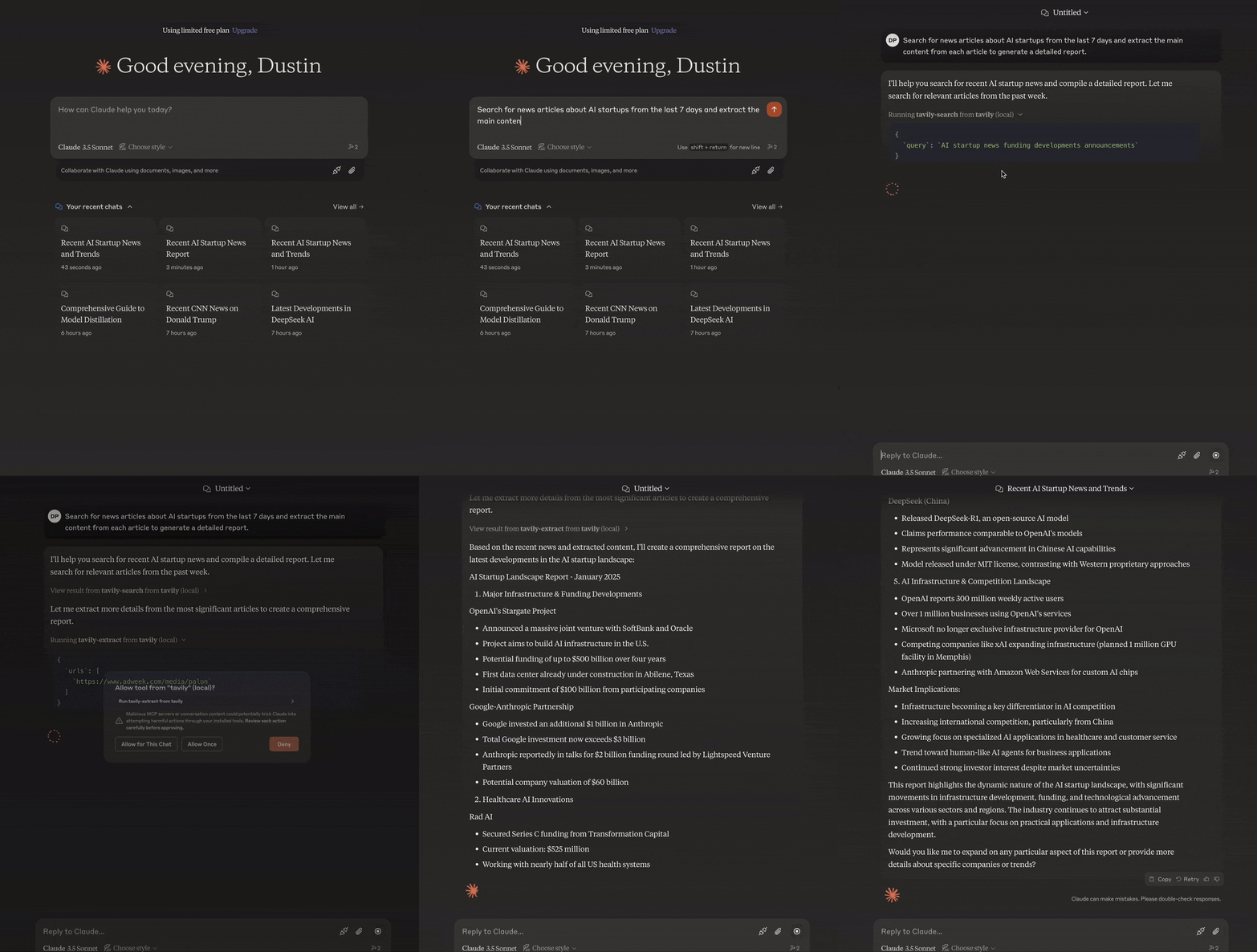 The Model Context Protocol (MCP) is an open standard that enables AI systems to interact seamlessly with various data sources and tools, facilitating secure, two-way connections.
Developed by Anthropic, the Model Context Protocol (MCP) enables AI assistants like Claude to seamlessly integrate with Tavily's advanced search and data extraction capabilities. This integration provides AI models with real-time access to web information, complete with sophisticated filtering options and domain-specific search features.
The Tavily MCP server provides:
* Seamless interaction with the tavily-search and tavily-extract tools
* Real-time web search capabilities through the tavily-search tool
* Intelligent data extraction from web pages via the tavily-extract tool
## Remote MCP Server
The easiest way to take advantage of Tavily MCP is by using the remote URL. This provides a seamless experience without requiring local installation or configuration.
Simply use the remote MCP server URL with your Tavily API key:
```
https://mcp.tavily.com/mcp/?tavilyApiKey=
```
Get your Tavily API key from [tavily.com](https://www.tavily.com/).
### Connect to Cursor
The Model Context Protocol (MCP) is an open standard that enables AI systems to interact seamlessly with various data sources and tools, facilitating secure, two-way connections.
Developed by Anthropic, the Model Context Protocol (MCP) enables AI assistants like Claude to seamlessly integrate with Tavily's advanced search and data extraction capabilities. This integration provides AI models with real-time access to web information, complete with sophisticated filtering options and domain-specific search features.
The Tavily MCP server provides:
* Seamless interaction with the tavily-search and tavily-extract tools
* Real-time web search capabilities through the tavily-search tool
* Intelligent data extraction from web pages via the tavily-extract tool
## Remote MCP Server
The easiest way to take advantage of Tavily MCP is by using the remote URL. This provides a seamless experience without requiring local installation or configuration.
Simply use the remote MCP server URL with your Tavily API key:
```
https://mcp.tavily.com/mcp/?tavilyApiKey=
```
Get your Tavily API key from [tavily.com](https://www.tavily.com/).
### Connect to Cursor
 Click the ⬆️ Add to Cursor ⬆️ button, this will do most of the work for you but you will still need to edit the configuration to add your API-KEY. You can get a Tavily API key [here](https://www.tavily.com/).
once you click the button you should be redirect to Cursor ...
You will then be redirected to your `mcp.json` file where you have to add `your-api-key`.
```json theme={null}
{
"mcpServers": {
"tavily-remote-mcp": {
"command": "npx -y mcp-remote https://mcp.tavily.com/mcp/?tavilyApiKey=",
"env": {}
}
}
}
```
### Connect to Claude Desktop
Claude desktop now supports adding `integrations` which is currently in beta. An integration in this case is the Tavily Remote MCP, below I will explain how to add the MCP as an `integration` in Claude desktop.
Open claude desktop, click the button with the two sliders and then navigate to add integrations. Name the integration and insert the Tavily remote MCP url with your API key. You can get a Tavily API key [here](https://www.tavily.com/). Click `Add` to confirm.
### OpenAI
Allow models to use remote MCP servers to perform tasks.
* You first need to export your OPENAI\_API\_KEY
* You must also add your Tavily API-key to ``, you can get a Tavily API key [here](https://www.tavily.com/)
```python theme={null}
from openai import OpenAI
client = OpenAI()
resp = client.responses.create(
model="gpt-4.1",
tools=[
{
"type": "mcp",
"server_label": "tavily",
"server_url": "https://mcp.tavily.com/mcp/?tavilyApiKey=",
"require_approval": "never",
## Optional default parameters:
"headers": {
"DEFAULT_PARAMETERS": json.dumps({
"include_favicon": True,
"include_images": False,
"include_raw_content": False,
}),
},
},
],
input="Do you have access to the tavily mcp server?",
)
print(resp.output_text)
```
### Connect to Claude Code
[Claude Code](https://docs.anthropic.com/en/docs/claude-code) natively supports remote MCP servers with OAuth authentication. Add Tavily to your Claude Code configuration by running:
```bash theme={null}
claude mcp add tavily-remote-mcp --transport http https://mcp.tavily.com/mcp/
```
When you start a new conversation, Claude Code will open a browser window for you to complete the OAuth flow and authorize access to your Tavily account. No API key needed in the URL — authentication is handled automatically via OAuth.
You can also manually add the following to your `.claude/settings.json`:
```json theme={null}
{
"mcpServers": {
"tavily-remote-mcp": {
"type": "http",
"url": "https://mcp.tavily.com/mcp/"
}
}
}
```
Alternatively, you can also connect using `mcp-remote`:
```bash theme={null}
claude mcp add tavily-remote-mcp -- npx -y mcp-remote https://mcp.tavily.com/mcp
```
### Clients that don't support remote MCPs
mcp-remote is a lightweight bridge that lets MCP clients that can only talk to local (stdio) servers securely connect to remote MCP servers over HTTP + SSE with OAuth-based auth, so you can host and update your server in the cloud while existing clients keep working. It serves as an experimental stop-gap until popular MCP clients natively support remote, authorized servers.
```json theme={null}
{
"tavily-remote": {
"command": "npx",
"args": [
"-y",
"mcp-remote",
"https://mcp.tavily.com/mcp/?tavilyApiKey="
]
}
}
```
### OAuth Authentication
The Tavily Remote MCP server supports secure OAuth authentication, allowing you to connect and authorize seamlessly with compatible clients.
Open the MCP Inspector and click "Open Auth Settings". Select the OAuth flow and complete these steps:
1. Metadata discovery
2. Client registration
3. Preparing authorization
4. Request authorization and obtain the authorization code
5. Token request
6. Authentication complete
Once finished, you will receive an access token that lets you securely make authenticated requests to the Tavily Remote MCP server.
You can configure your MCP client to use OAuth without including your Tavily API key in the URL. For example, in Cursor's `mcp.json`:
```json theme={null}
{
"mcpServers": {
"tavily-remote-mcp": {
"command": "npx mcp-remote https://mcp.tavily.com/mcp",
"env": {}
}
}
}
```
If you need to clear stored OAuth credentials and reauthenticate, run:
```bash theme={null}
rm -rf ~/.mcp-auth
```
**API Key Selection for OAuth**
When using OAuth authentication, you can control which API key is used by naming a key `mcp_auth_default` in your Tavily dashboard:
* **Personal account**: If you have a key named `mcp_auth_default` in your personal account, it will be used for all OAuth-authenticated requests.
* **Team account**: If your team has a key named `mcp_auth_default`, it will be used for all OAuth-authenticated requests.
* **Both set**: If both your personal account and your team have a key named `mcp_auth_default`, the **personal key takes priority**.
* **Neither set**: If no `mcp_auth_default` key exists, the `default` key in your personal account will be used. If no `default` key is set, the first available key will be used.
OAuth authentication is optional—you can still use API key authentication at any time by including your Tavily API key in the URL query parameter (`?tavilyApiKey=...`) or by setting it in the Authorization header.
Alternatively, you can also run the MCP server locally.
### Default Parameters
When using the remote MCP, you can specify default parameters for all requests by including a `DEFAULT_PARAMETERS` header containing a JSON object with your desired defaults. Example:
```
{"include_images":true, "search_depth": "advanced", "max_results": 10}
```
### Session & User Attribution
The remote MCP server automatically attaches identifiers to every Tavily API call so requests can be attributed back to a session. It generates `X-Session-Id` on its own, while `X-Human-Id` is forwarded only when supplied by the client.
* **`X-Session-Id`** — generated per MCP session (the `mcp-session-id` returned during the MCP `initialize` handshake). All tool calls within the same MCP session share the same value.
* **`X-Human-Id`** — if your client provides an `X-Human-Id` header (or `humanId` query parameter on the MCP URL), it is forwarded through to the Tavily API, helping Tavily better understand multi-step interactions and improve response quality. For security, Tavily hashes human IDs before processing or storing them.
See [Session Tracking](/documentation/api-reference/introduction#session--user-tracking) for the underlying API contract.
## Local Installation
### Prerequisites
* [Tavily API key](https://app.tavily.com/home)
* If you don't have a Tavily API key, you can sign up for a free account [here](https://app.tavily.com/home)
* [Claude Desktop](https://claude.ai/download) or [Cursor](https://cursor.sh)
* [Node.js](https://nodejs.org/) (v20 or higher)
* You can verify your Node.js installation by running:
```bash theme={null}
node --version
```
Only needed if using Git installation method:
* On macOS: `brew install git`
* On Linux:
* Debian/Ubuntu: `sudo apt install git`
* RedHat/CentOS: `sudo yum install git`
* On Windows: Download [Git for Windows](https://git-scm.com/download/win)
```bash NPX theme={null}
npx -y tavily-mcp@0.1.3
```
```bash Git theme={null}
git clone https://github.com/tavily-ai/tavily-mcp.git
cd tavily-mcp
npm install
npm run build
```
Although you can launch a server on its own, it's not particularly helpful in
isolation. Instead, you should integrate it into an MCP client.
### Configuring MCP Clients
> **Note**: Requires Cursor version 0.45.6 or higher
To set up the Tavily MCP server in Cursor:
1. Open Cursor Settings
2. Navigate to Features > MCP Servers
3. Click on the "+ Add New MCP Server" button
4. Fill out the following information:
* **Name**: Enter a nickname for the server (e.g., "tavily-mcp")
* **Type**: Select "command" as the type
* **Command**: Enter the command to run the server:
```bash theme={null}
env TAVILY_API_KEY=tvly-YOUR_API_KEY npx -y tavily-mcp@0.1.3
```
Replace `tvly-YOUR_API_KEY` with your Tavily API key from [app.tavily.com/home](https://app.tavily.com/home)
Click the ⬆️ Add to Cursor ⬆️ button, this will do most of the work for you but you will still need to edit the configuration to add your API-KEY. You can get a Tavily API key [here](https://www.tavily.com/).
once you click the button you should be redirect to Cursor ...
You will then be redirected to your `mcp.json` file where you have to add `your-api-key`.
```json theme={null}
{
"mcpServers": {
"tavily-remote-mcp": {
"command": "npx -y mcp-remote https://mcp.tavily.com/mcp/?tavilyApiKey=",
"env": {}
}
}
}
```
### Connect to Claude Desktop
Claude desktop now supports adding `integrations` which is currently in beta. An integration in this case is the Tavily Remote MCP, below I will explain how to add the MCP as an `integration` in Claude desktop.
Open claude desktop, click the button with the two sliders and then navigate to add integrations. Name the integration and insert the Tavily remote MCP url with your API key. You can get a Tavily API key [here](https://www.tavily.com/). Click `Add` to confirm.
### OpenAI
Allow models to use remote MCP servers to perform tasks.
* You first need to export your OPENAI\_API\_KEY
* You must also add your Tavily API-key to ``, you can get a Tavily API key [here](https://www.tavily.com/)
```python theme={null}
from openai import OpenAI
client = OpenAI()
resp = client.responses.create(
model="gpt-4.1",
tools=[
{
"type": "mcp",
"server_label": "tavily",
"server_url": "https://mcp.tavily.com/mcp/?tavilyApiKey=",
"require_approval": "never",
## Optional default parameters:
"headers": {
"DEFAULT_PARAMETERS": json.dumps({
"include_favicon": True,
"include_images": False,
"include_raw_content": False,
}),
},
},
],
input="Do you have access to the tavily mcp server?",
)
print(resp.output_text)
```
### Connect to Claude Code
[Claude Code](https://docs.anthropic.com/en/docs/claude-code) natively supports remote MCP servers with OAuth authentication. Add Tavily to your Claude Code configuration by running:
```bash theme={null}
claude mcp add tavily-remote-mcp --transport http https://mcp.tavily.com/mcp/
```
When you start a new conversation, Claude Code will open a browser window for you to complete the OAuth flow and authorize access to your Tavily account. No API key needed in the URL — authentication is handled automatically via OAuth.
You can also manually add the following to your `.claude/settings.json`:
```json theme={null}
{
"mcpServers": {
"tavily-remote-mcp": {
"type": "http",
"url": "https://mcp.tavily.com/mcp/"
}
}
}
```
Alternatively, you can also connect using `mcp-remote`:
```bash theme={null}
claude mcp add tavily-remote-mcp -- npx -y mcp-remote https://mcp.tavily.com/mcp
```
### Clients that don't support remote MCPs
mcp-remote is a lightweight bridge that lets MCP clients that can only talk to local (stdio) servers securely connect to remote MCP servers over HTTP + SSE with OAuth-based auth, so you can host and update your server in the cloud while existing clients keep working. It serves as an experimental stop-gap until popular MCP clients natively support remote, authorized servers.
```json theme={null}
{
"tavily-remote": {
"command": "npx",
"args": [
"-y",
"mcp-remote",
"https://mcp.tavily.com/mcp/?tavilyApiKey="
]
}
}
```
### OAuth Authentication
The Tavily Remote MCP server supports secure OAuth authentication, allowing you to connect and authorize seamlessly with compatible clients.
Open the MCP Inspector and click "Open Auth Settings". Select the OAuth flow and complete these steps:
1. Metadata discovery
2. Client registration
3. Preparing authorization
4. Request authorization and obtain the authorization code
5. Token request
6. Authentication complete
Once finished, you will receive an access token that lets you securely make authenticated requests to the Tavily Remote MCP server.
You can configure your MCP client to use OAuth without including your Tavily API key in the URL. For example, in Cursor's `mcp.json`:
```json theme={null}
{
"mcpServers": {
"tavily-remote-mcp": {
"command": "npx mcp-remote https://mcp.tavily.com/mcp",
"env": {}
}
}
}
```
If you need to clear stored OAuth credentials and reauthenticate, run:
```bash theme={null}
rm -rf ~/.mcp-auth
```
**API Key Selection for OAuth**
When using OAuth authentication, you can control which API key is used by naming a key `mcp_auth_default` in your Tavily dashboard:
* **Personal account**: If you have a key named `mcp_auth_default` in your personal account, it will be used for all OAuth-authenticated requests.
* **Team account**: If your team has a key named `mcp_auth_default`, it will be used for all OAuth-authenticated requests.
* **Both set**: If both your personal account and your team have a key named `mcp_auth_default`, the **personal key takes priority**.
* **Neither set**: If no `mcp_auth_default` key exists, the `default` key in your personal account will be used. If no `default` key is set, the first available key will be used.
OAuth authentication is optional—you can still use API key authentication at any time by including your Tavily API key in the URL query parameter (`?tavilyApiKey=...`) or by setting it in the Authorization header.
Alternatively, you can also run the MCP server locally.
### Default Parameters
When using the remote MCP, you can specify default parameters for all requests by including a `DEFAULT_PARAMETERS` header containing a JSON object with your desired defaults. Example:
```
{"include_images":true, "search_depth": "advanced", "max_results": 10}
```
### Session & User Attribution
The remote MCP server automatically attaches identifiers to every Tavily API call so requests can be attributed back to a session. It generates `X-Session-Id` on its own, while `X-Human-Id` is forwarded only when supplied by the client.
* **`X-Session-Id`** — generated per MCP session (the `mcp-session-id` returned during the MCP `initialize` handshake). All tool calls within the same MCP session share the same value.
* **`X-Human-Id`** — if your client provides an `X-Human-Id` header (or `humanId` query parameter on the MCP URL), it is forwarded through to the Tavily API, helping Tavily better understand multi-step interactions and improve response quality. For security, Tavily hashes human IDs before processing or storing them.
See [Session Tracking](/documentation/api-reference/introduction#session--user-tracking) for the underlying API contract.
## Local Installation
### Prerequisites
* [Tavily API key](https://app.tavily.com/home)
* If you don't have a Tavily API key, you can sign up for a free account [here](https://app.tavily.com/home)
* [Claude Desktop](https://claude.ai/download) or [Cursor](https://cursor.sh)
* [Node.js](https://nodejs.org/) (v20 or higher)
* You can verify your Node.js installation by running:
```bash theme={null}
node --version
```
Only needed if using Git installation method:
* On macOS: `brew install git`
* On Linux:
* Debian/Ubuntu: `sudo apt install git`
* RedHat/CentOS: `sudo yum install git`
* On Windows: Download [Git for Windows](https://git-scm.com/download/win)
```bash NPX theme={null}
npx -y tavily-mcp@0.1.3
```
```bash Git theme={null}
git clone https://github.com/tavily-ai/tavily-mcp.git
cd tavily-mcp
npm install
npm run build
```
Although you can launch a server on its own, it's not particularly helpful in
isolation. Instead, you should integrate it into an MCP client.
### Configuring MCP Clients
> **Note**: Requires Cursor version 0.45.6 or higher
To set up the Tavily MCP server in Cursor:
1. Open Cursor Settings
2. Navigate to Features > MCP Servers
3. Click on the "+ Add New MCP Server" button
4. Fill out the following information:
* **Name**: Enter a nickname for the server (e.g., "tavily-mcp")
* **Type**: Select "command" as the type
* **Command**: Enter the command to run the server:
```bash theme={null}
env TAVILY_API_KEY=tvly-YOUR_API_KEY npx -y tavily-mcp@0.1.3
```
Replace `tvly-YOUR_API_KEY` with your Tavily API key from [app.tavily.com/home](https://app.tavily.com/home)
 ```bash macOS theme={null}
# Create the config file if it doesn't exist
touch "$HOME/Library/Application Support/Claude/claude_desktop_config.json"
# Opens the config file in TextEdit
open -e "$HOME/Library/Application Support/Claude/claude_desktop_config.json"
# Alternative method using Visual Studio Code
code "$HOME/Library/Application Support/Claude/claude_desktop_config.json"
```
```bash Windows theme={null}
code %APPDATA%\Claude\claude_desktop_config.json
```
Add this configuration (replace `tvly-YOUR_API_KEY-here` with your [Tavily API key](https://tavily.com/api-keys)):
```json Configuration theme={null}
{
"mcpServers": {
"tavily-mcp": {
"command": "npx",
"args": ["-y", "tavily-mcp@0.1.2"],
"env": {
"TAVILY_API_KEY": "tvly-YOUR_API_KEY-here"
}
}
}
}
```
### Default Parameters
For local MCP setups, you can set default parameter values using the `DEFAULT_PARAMETERS` environment variable. This allows you to configure default search behavior without specifying these parameters in every request.
```json theme={null}
{
"mcpServers": {
"tavily-mcp": {
"command": "npx",
"args": ["-y", "tavily-mcp@latest"],
"env": {
"TAVILY_API_KEY": "your-api-key-here",
"DEFAULT_PARAMETERS": "{\"include_images\": true, \"max_results\": 15, \"search_depth\": \"advanced\"}"
}
}
}
}
```
### Session & User Attribution
The local MCP server automatically attaches identifiers to every Tavily API call so requests can be attributed back to a session:
* **`X-Session-Id`** — auto-generated once per MCP process and reused for every tool call.
* **`X-Human-Id`** — if you set the `HUMAN_ID` environment variable, that value is forwarded through to the Tavily API on every request, helping Tavily better understand multi-step interactions and improve response quality. For security, Tavily hashes human IDs before processing or storing them.
See [Session Tracking](/documentation/api-reference/introduction#session--user-tracking) for the underlying API contract.
## Usage Examples
1. **General Web Search**:
```
Can you search for recent developments in quantum computing?
```
2. **News Search**:
```
Search for news articles about AI startups from the last 7 days.
```
3. **Domain-Specific Search**:
```
Search for climate change research on nature.com and sciencedirect.com
```
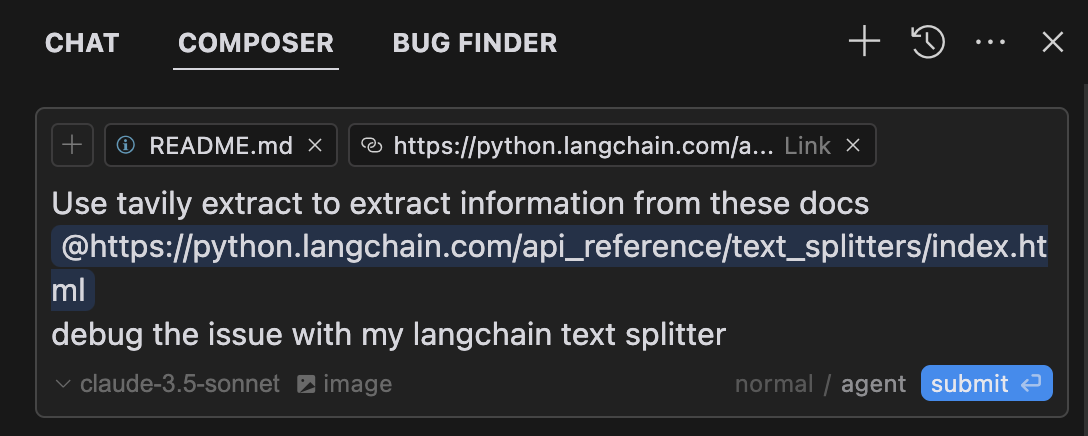
**Extract Article Content**: `Extract the main content from this article:
https://example.com/article`
```
Search for news articles about AI startups from the last 7 days and extract the main content from each article to generate a detailed report.
```
## Troubleshooting
If you encounter server connection issues, run these commands to verify your environment:
```bash theme={null}
npm --version
node --version
```
Make sure to also check your configuration syntax for any errors.
If experiencing problems with npx, locate your executable:
```bash theme={null}
which npx
```
Once you have the path, update your configuration to use the full path to the npx executable.
When troubleshooting API key problems, verify that your key is:
* Properly formatted with the `tvly-` prefix
* Valid and active in your Tavily dashboard
* Correctly configured in your environment variables
You can test your API key validity by making a simple test request through the [Tavily Playground](https://app.tavily.com/playground)
## Acknowledgments
For the MCP specification
For Claude Desktop
```bash macOS theme={null}
# Create the config file if it doesn't exist
touch "$HOME/Library/Application Support/Claude/claude_desktop_config.json"
# Opens the config file in TextEdit
open -e "$HOME/Library/Application Support/Claude/claude_desktop_config.json"
# Alternative method using Visual Studio Code
code "$HOME/Library/Application Support/Claude/claude_desktop_config.json"
```
```bash Windows theme={null}
code %APPDATA%\Claude\claude_desktop_config.json
```
Add this configuration (replace `tvly-YOUR_API_KEY-here` with your [Tavily API key](https://tavily.com/api-keys)):
```json Configuration theme={null}
{
"mcpServers": {
"tavily-mcp": {
"command": "npx",
"args": ["-y", "tavily-mcp@0.1.2"],
"env": {
"TAVILY_API_KEY": "tvly-YOUR_API_KEY-here"
}
}
}
}
```
### Default Parameters
For local MCP setups, you can set default parameter values using the `DEFAULT_PARAMETERS` environment variable. This allows you to configure default search behavior without specifying these parameters in every request.
```json theme={null}
{
"mcpServers": {
"tavily-mcp": {
"command": "npx",
"args": ["-y", "tavily-mcp@latest"],
"env": {
"TAVILY_API_KEY": "your-api-key-here",
"DEFAULT_PARAMETERS": "{\"include_images\": true, \"max_results\": 15, \"search_depth\": \"advanced\"}"
}
}
}
}
```
### Session & User Attribution
The local MCP server automatically attaches identifiers to every Tavily API call so requests can be attributed back to a session:
* **`X-Session-Id`** — auto-generated once per MCP process and reused for every tool call.
* **`X-Human-Id`** — if you set the `HUMAN_ID` environment variable, that value is forwarded through to the Tavily API on every request, helping Tavily better understand multi-step interactions and improve response quality. For security, Tavily hashes human IDs before processing or storing them.
See [Session Tracking](/documentation/api-reference/introduction#session--user-tracking) for the underlying API contract.
## Usage Examples
1. **General Web Search**:
```
Can you search for recent developments in quantum computing?
```
2. **News Search**:
```
Search for news articles about AI startups from the last 7 days.
```
3. **Domain-Specific Search**:
```
Search for climate change research on nature.com and sciencedirect.com
```
**Extract Article Content**: `Extract the main content from this article:
https://example.com/article`
```
Search for news articles about AI startups from the last 7 days and extract the main content from each article to generate a detailed report.
```
## Troubleshooting
If you encounter server connection issues, run these commands to verify your environment:
```bash theme={null}
npm --version
node --version
```
Make sure to also check your configuration syntax for any errors.
If experiencing problems with npx, locate your executable:
```bash theme={null}
which npx
```
Once you have the path, update your configuration to use the full path to the npx executable.
When troubleshooting API key problems, verify that your key is:
* Properly formatted with the `tvly-` prefix
* Valid and active in your Tavily dashboard
* Correctly configured in your environment variables
You can test your API key validity by making a simple test request through the [Tavily Playground](https://app.tavily.com/playground)
## Acknowledgments
For the MCP specification
For Claude Desktop