> ## Documentation Index
> Fetch the complete documentation index at: https://docs.tavily.com/llms.txt
> Use this file to discover all available pages before exploring further.
# FlowiseAI
> Tavily is now available for integration through Flowise.
## Introduction
Integrate [Tavily with FlowiseAI](https://docs.flowiseai.com/integrations/langchain/tools/tavily-ai) to enhance your AI workflows with powerful web search capabilities. Flowise provides a no-code platform for building AI applications, and the Tavily integration offers real-time, accurate search results tailored for LLMs and RAG (Retrieval-Augmented Generation) systems.
Set up Tavily in Flowise to create chatflows or agent flows that can automate research, track news, or feed relevant data into your connected applications.
## How to set up Tavily with Flowise
Follow these steps to integrate Tavily with Flowise:
[Login](https://flowiseai.com/) to your Flowise account.
Create a new flow in Flowise:
1. Click "Create New Flow"
2. Select either "Chat Flow" or "Agent Flow" as the type
3. Name your flow (e.g., "Research Assistant")
Add the Tavily node to your flow:
**For Chat Flow:**
1. Click on the (+) button
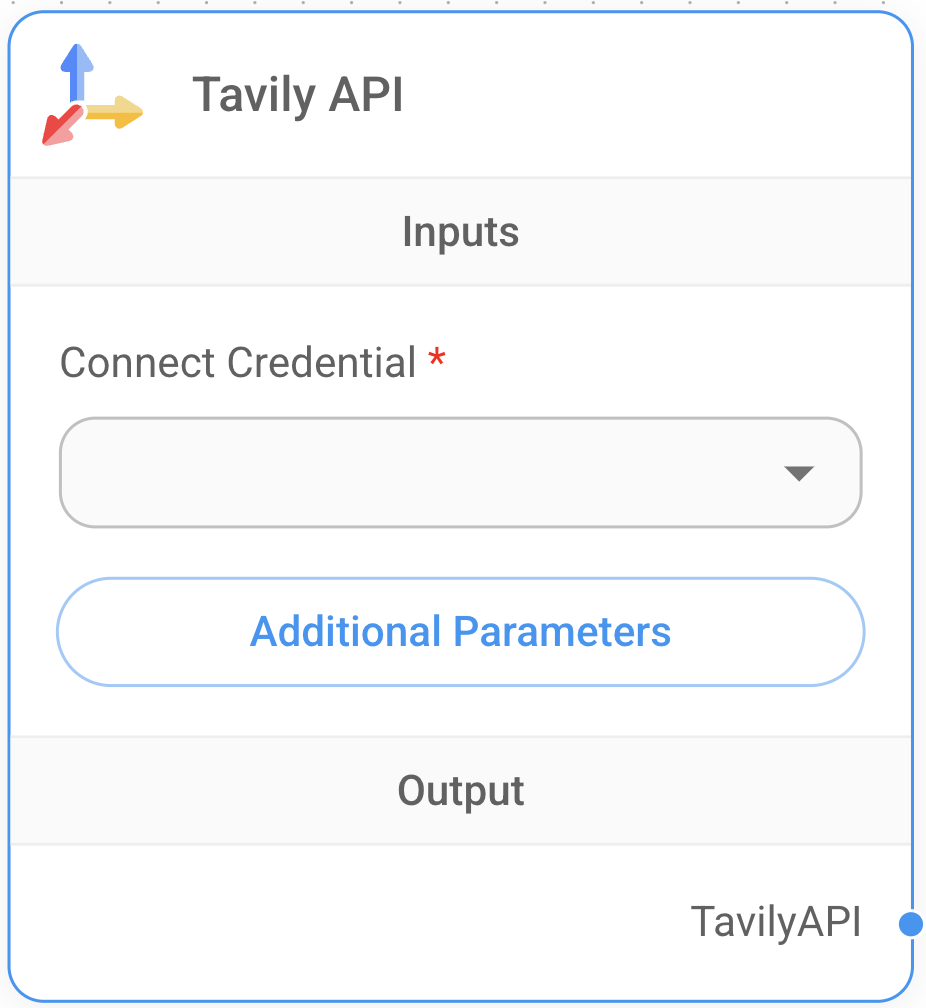
2. Navigate to **LangChain > Tools > Tavily API**
3. Drag the Tavily node into your flow
**For Agent Flow:**
1. Click on the (+) button
2. Navigate to **Tools > Tavily API**
3. Drag the Tavily node into your flow
Configure the Tavily node with your credentials and parameters:
1. Enter your Tavily API key in the credentials section
2. Configure additional parameters, for example:
* **Search Depth:** Choose between 'basic' or 'advanced'
* **Max Results:** Set the number of results to return
* **Include Domains:** Specify domains to include in search
* **Exclude Domains:** Specify domains to exclude from search
Connect the Tavily node to other nodes in your flow:
1. Connect to any node that accepts tool inputs
2. Connect to an LLM node for query processing
3. Connect to a Response node to format results
## Using Tavily in Flowise
Tavily can be utilized in various Flowise application types:
### Chatflow Applications
Flowise's Chatflow applications support Tavily tool node. This node allows you to automate tasks such as research, content curation, and real-time data integration into your workflows.
### Agent Applications
In Agent applications, you can integrate the Tavily tool to access web data in real time. Use this to:
* Retrieve structured and relevant search results
* Extract raw content for further processing
* Provide accurate, context-aware answers to user queries