> ## Documentation Index
> Fetch the complete documentation index at: https://docs.tavily.com/llms.txt
> Use this file to discover all available pages before exploring further.
# Devin
> Connect Tavily to Devin through the MCP Marketplace so Devin can search the web, read docs, and ground coding tasks with live web context.
## Introduction
[Devin](https://app.devin.ai/) is an AI software engineering agent that can take a development task, work through multiple steps, use tools, and help build or update applications inside its workspace.
## Why use Tavily with Devin?
Tavily helps Devin go beyond its built-in knowledge when a task depends on the current web.
* **Research before coding** — Compare libraries, frameworks, and services before implementation.
* **Read docs faster** — Pull clean content from relevant pages instead of relying on noisy web pages.
* **Ground implementation choices** — Use live sources when picking packages, SDKs, or workflows.
* **Handle multi-step engineering tasks** — Search, extract, and research can all happen in the same coding flow.
### Example use case
Ask Devin to add email support to a product using the best current provider for your stack. With Tavily enabled, Devin can search for recent comparisons of Resend, Postmark, and SendGrid, read the latest integration docs, choose an option that fits your app, implement the flow, and document the setup in your README.
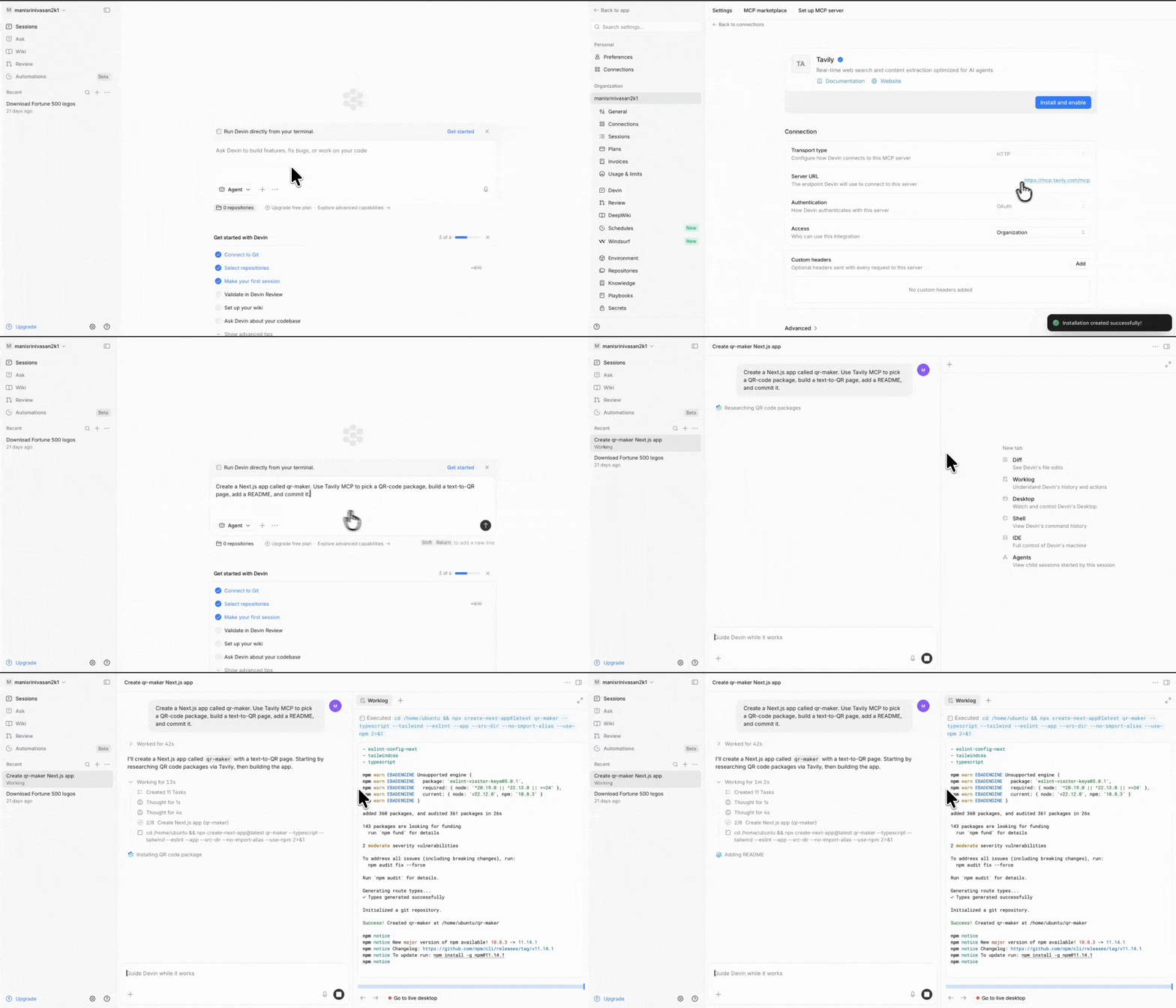
## Full walkthrough
 ## Setup
Follow this flow in Devin:
Go to [app.devin.ai](https://app.devin.ai/).
Click your **username** and open the **Settings** dropdown from the left panel.
In Settings, click **Connectors**.
Inside Connectors, open **MCP Marketplace**.
Search for **Tavily**, then click **Add**, **Install**, and **Enable**.
Click **Test tools** if you want to verify the integration before using it in a task.
After installation, Devin can use Tavily's web research capabilities during coding tasks whenever live external context is helpful.
## Usage
Once Tavily is enabled:
1. Go back to the main Devin app.
2. Start a new task.
3. Ask Devin to use Tavily MCP as part of the workflow.
Example prompt:
```text theme={null}
Create a Next.js app called `qr-maker`. Use Tavily MCP to pick a QR-code package, build a text-to-QR page, add a README, and commit it.
```
From there, Devin can use Tavily to research package options, inspect relevant documentation, choose a suitable library, and then build the app with the requested deliverables.
## Good tasks for Devin + Tavily
* choosing between actively maintained packages
* implementing against the latest API or SDK docs
* reading framework migration guides
* comparing current tooling options before coding
* gathering source material before writing code or documentation
## Learn more
* [Tavily MCP Documentation](/documentation/mcp)
* [Tavily API Reference](/documentation/api-reference/introduction)
## Setup
Follow this flow in Devin:
Go to [app.devin.ai](https://app.devin.ai/).
Click your **username** and open the **Settings** dropdown from the left panel.
In Settings, click **Connectors**.
Inside Connectors, open **MCP Marketplace**.
Search for **Tavily**, then click **Add**, **Install**, and **Enable**.
Click **Test tools** if you want to verify the integration before using it in a task.
After installation, Devin can use Tavily's web research capabilities during coding tasks whenever live external context is helpful.
## Usage
Once Tavily is enabled:
1. Go back to the main Devin app.
2. Start a new task.
3. Ask Devin to use Tavily MCP as part of the workflow.
Example prompt:
```text theme={null}
Create a Next.js app called `qr-maker`. Use Tavily MCP to pick a QR-code package, build a text-to-QR page, add a README, and commit it.
```
From there, Devin can use Tavily to research package options, inspect relevant documentation, choose a suitable library, and then build the app with the requested deliverables.
## Good tasks for Devin + Tavily
* choosing between actively maintained packages
* implementing against the latest API or SDK docs
* reading framework migration guides
* comparing current tooling options before coding
* gathering source material before writing code or documentation
## Learn more
* [Tavily MCP Documentation](/documentation/mcp)
* [Tavily API Reference](/documentation/api-reference/introduction)