> ## Documentation Index
> Fetch the complete documentation index at: https://docs.tavily.com/llms.txt
> Use this file to discover all available pages before exploring further.
# OpenAI Agent Builder
> Integrate OpenAI’s Agent Builder with Tavily’s MCP server to empower your AI agents with real-time web access.
## Getting Started
Before you begin, make sure you have:
* A [Tavily API key](https://app.tavily.com/home) (sign up for free if you don't have one)
* An OpenAI account with [organization verification](https://help.openai.com/en/articles/10910291-api-organization-verification)
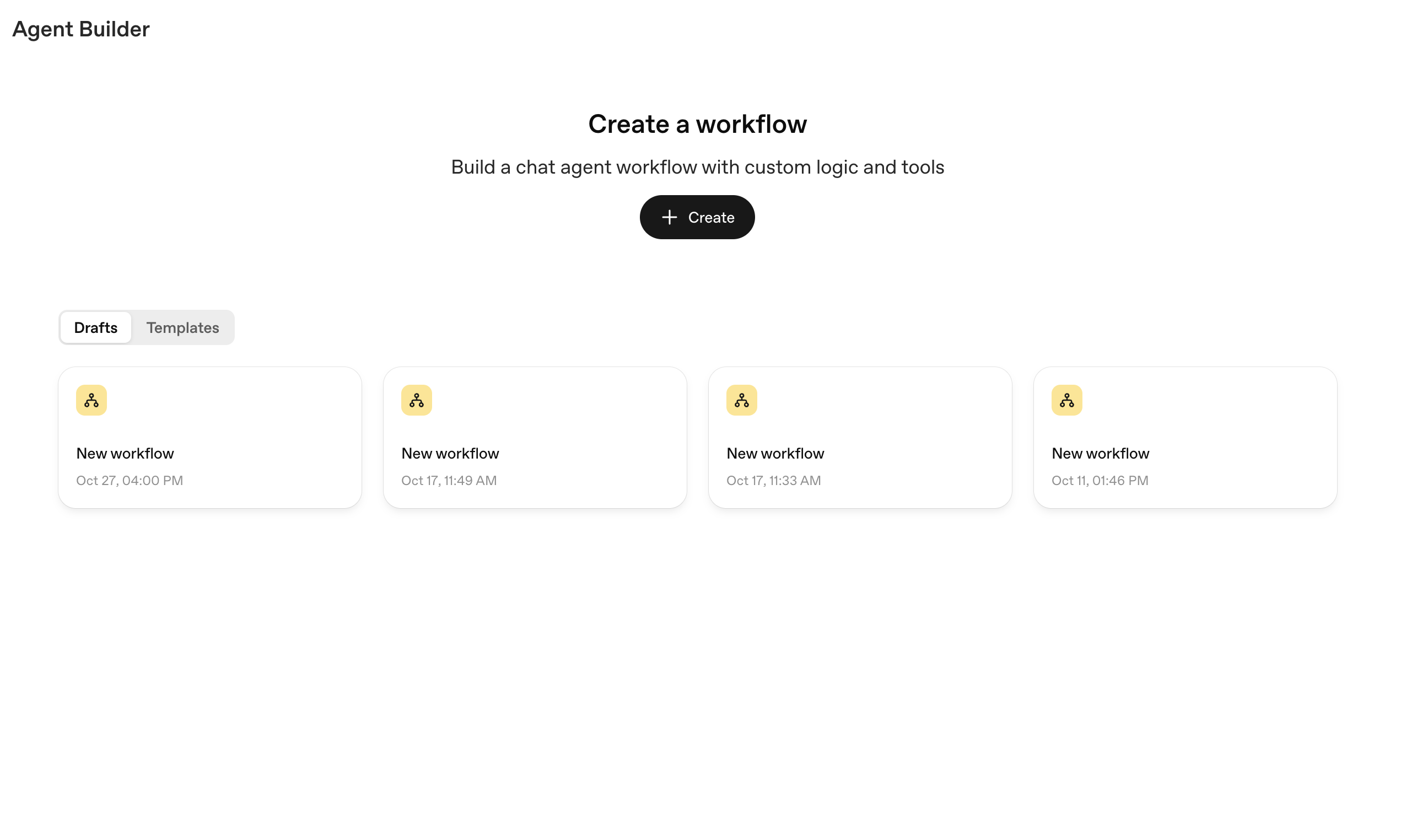
Navigate to [Agent Builder](https://platform.openai.com/agent-builder) and click **Create New Workflow** to begin building your AI agent.
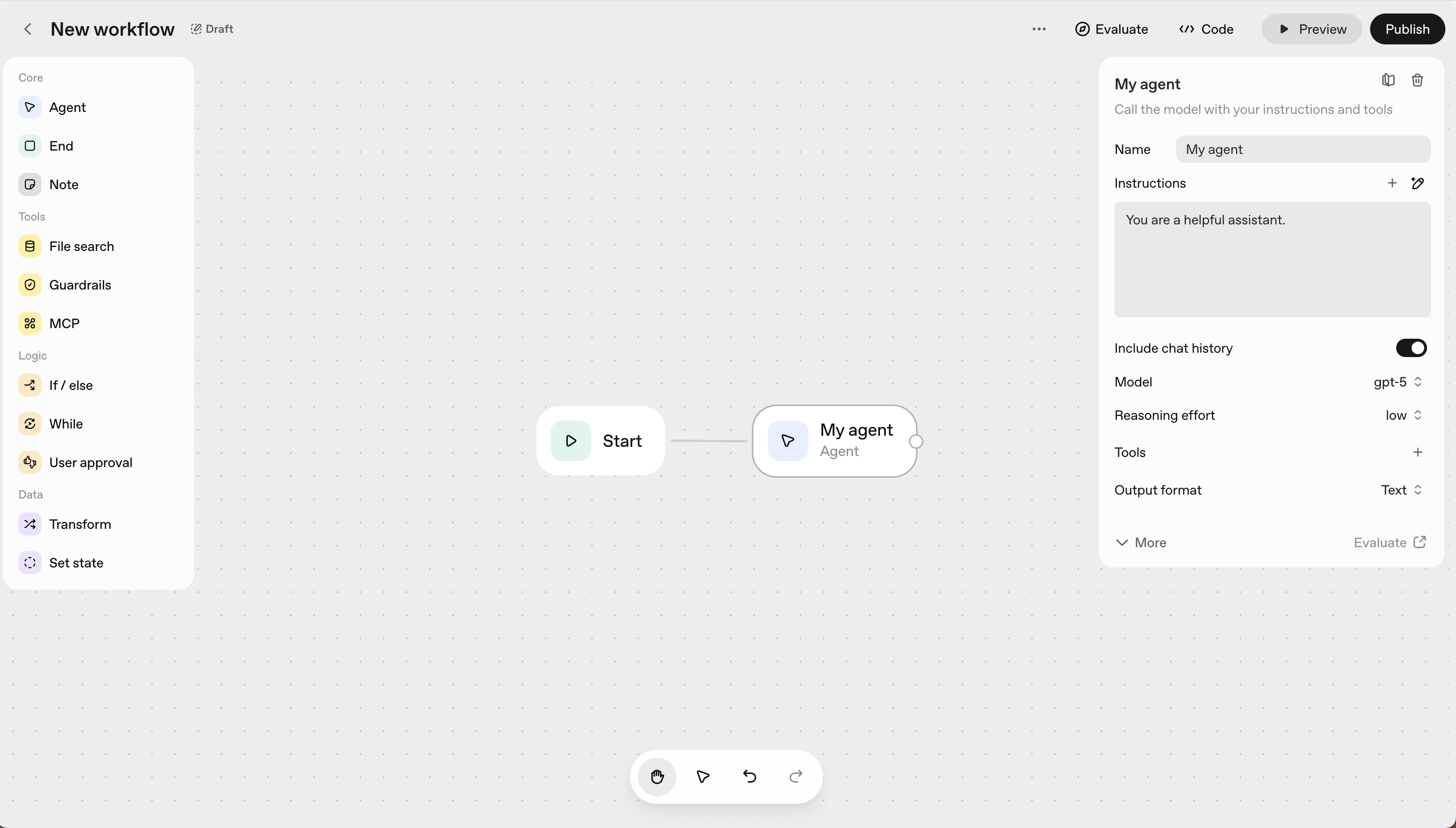
 Click on the agent node in your workflow canvas to open the configuration panel.
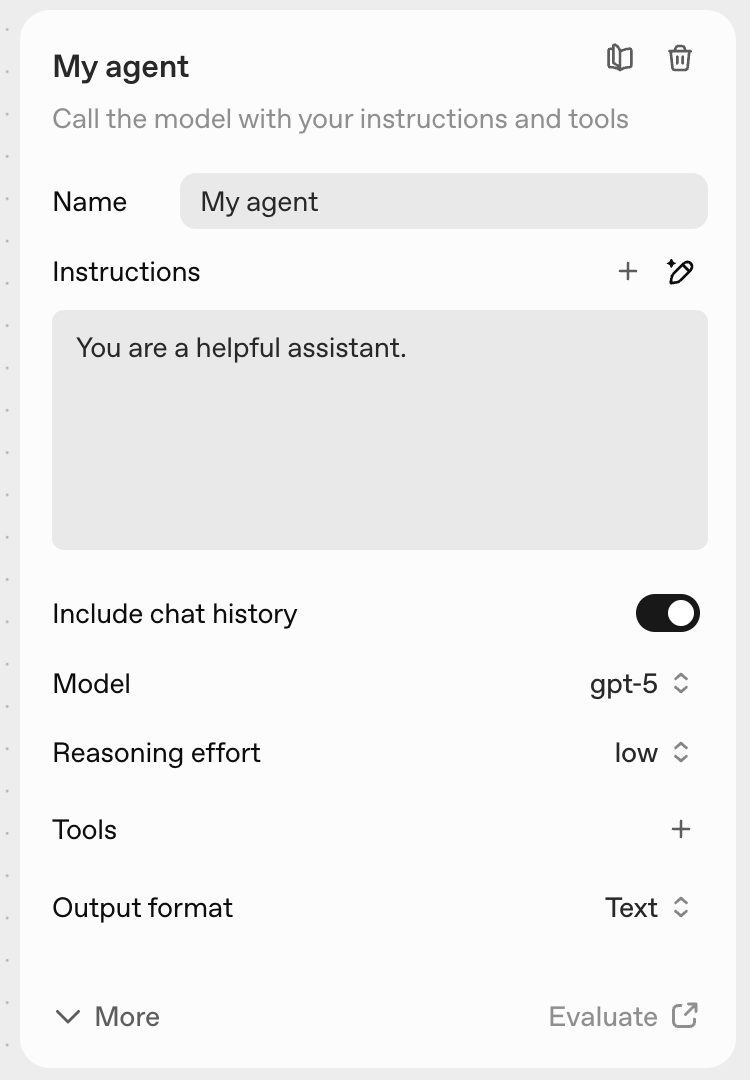
 In the configuration panel, locate and click on **Tools** in the sidebar to add external capabilities to your agent.
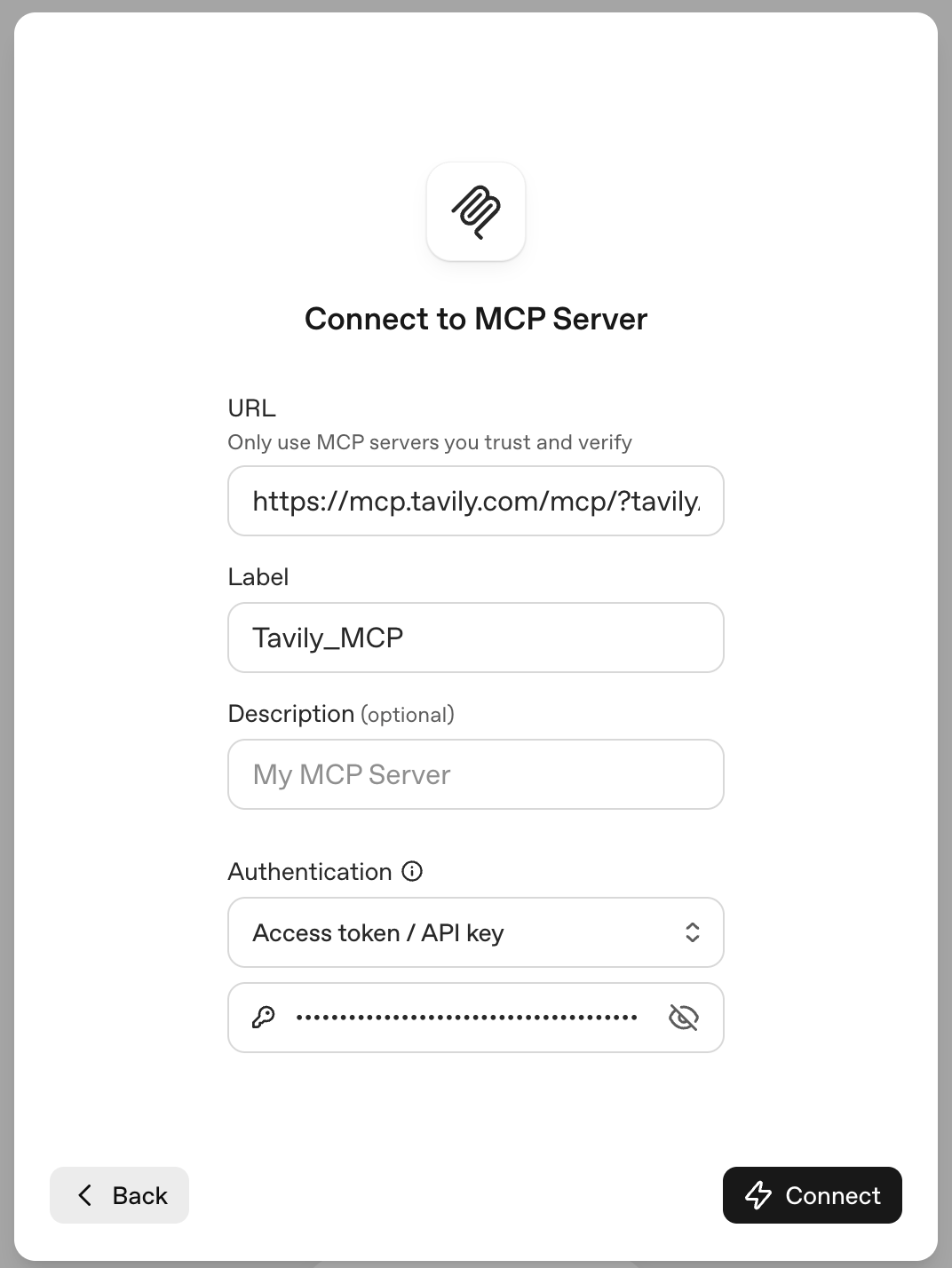
 In the MCP configuration section, paste the Tavily MCP server URL:
```bash theme={null}
https://mcp.tavily.com/mcp/?tavilyApiKey=YOUR_API_KEY
```
Remember to replace `YOUR_API_KEY` with your actual Tavily API key.
{" "}
Need an API key? Get one instantly from your [Tavily
dashboard](https://app.tavily.com/home)
Click **Connect** to establish the connection to Tavily.
In the MCP configuration section, paste the Tavily MCP server URL:
```bash theme={null}
https://mcp.tavily.com/mcp/?tavilyApiKey=YOUR_API_KEY
```
Remember to replace `YOUR_API_KEY` with your actual Tavily API key.
{" "}
Need an API key? Get one instantly from your [Tavily
dashboard](https://app.tavily.com/home)
Click **Connect** to establish the connection to Tavily.
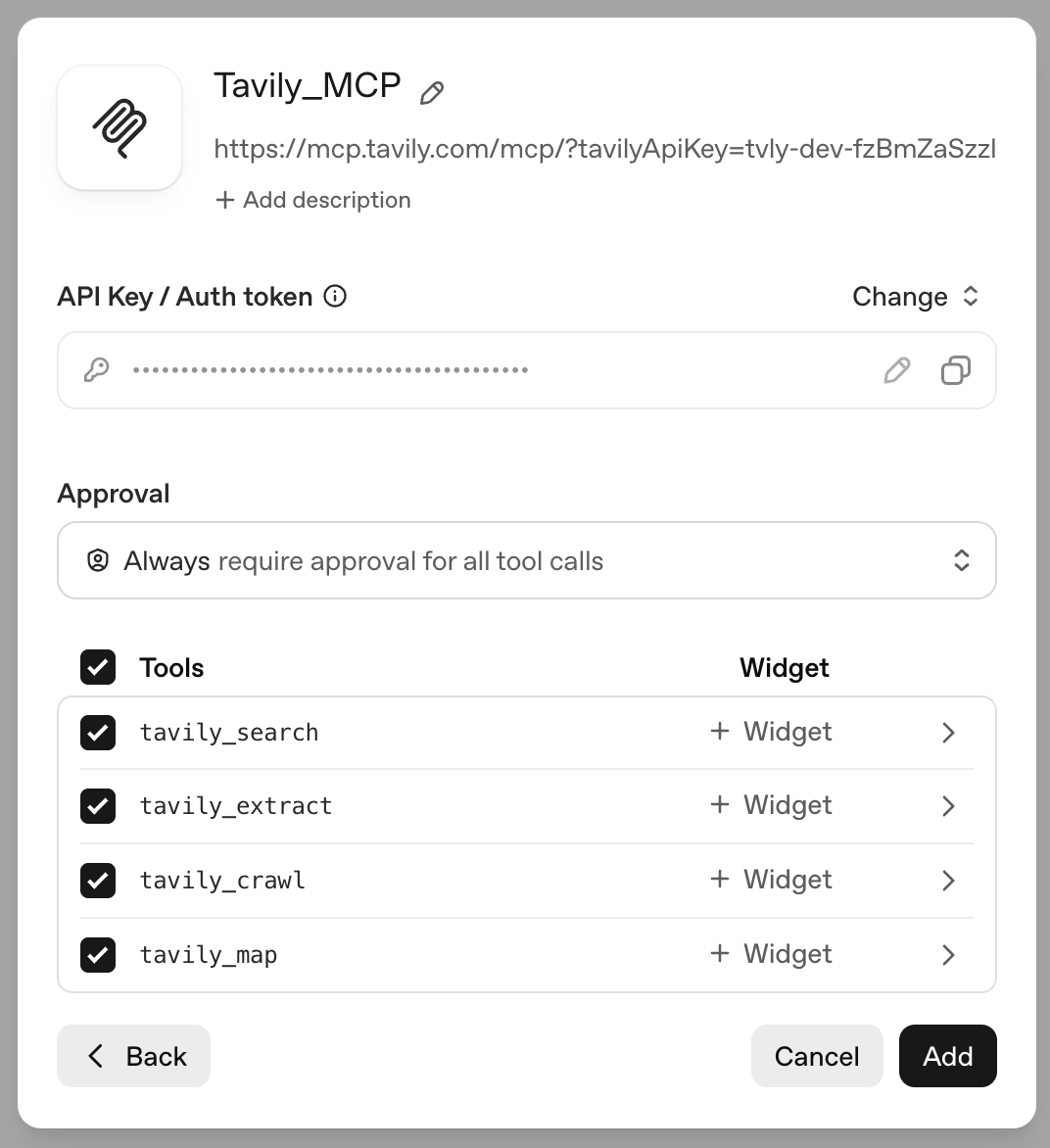
 Once connected, you'll see Tavily's suite of tools available:
* **tavily\_search** - Execute a search query.
* **tavily\_extract** - Extract web page content from one or more specified URLs.
* **tavily\_map** - Traverses websites like a graph and can explore hundreds of paths in parallel with intelligent discovery to generate comprehensive site maps.
* **tavily\_crawl** - Traversal tool that can explore hundreds of paths in parallel with built-in extraction and intelligent discovery.
Select the tools you want to activate for this agent, then click **Add** to integrate them.
Once connected, you'll see Tavily's suite of tools available:
* **tavily\_search** - Execute a search query.
* **tavily\_extract** - Extract web page content from one or more specified URLs.
* **tavily\_map** - Traverses websites like a graph and can explore hundreds of paths in parallel with intelligent discovery to generate comprehensive site maps.
* **tavily\_crawl** - Traversal tool that can explore hundreds of paths in parallel with built-in extraction and intelligent discovery.
Select the tools you want to activate for this agent, then click **Add** to integrate them.
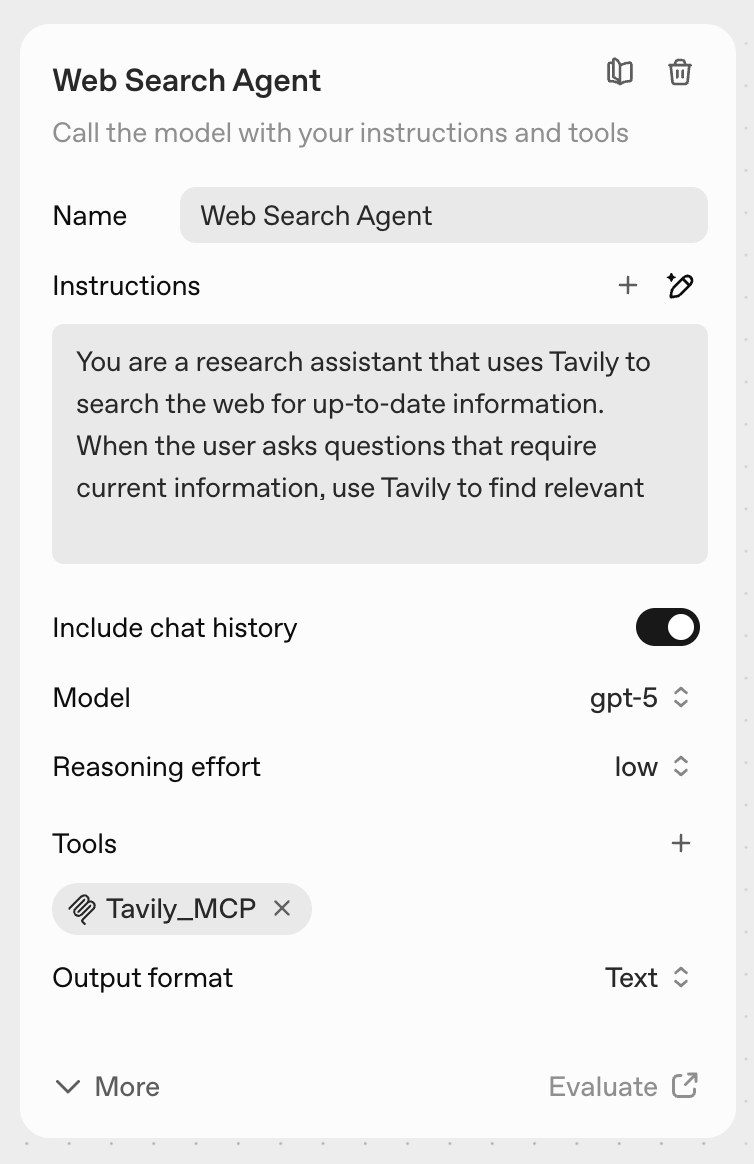
 Now configure your agent:
* **Name**: Choose a descriptive name for your agent
* **Instructions**: Define the agent's role and how it should use Tavily's tools
* **Reasoning**: Set the appropriate reasoning effort level
* Click **Preview** to test the configuration
**Sample instructions:**
```
You are a research assistant that uses Tavily to search the web for up-to-date information.
When the user asks questions that require current information, use Tavily to find relevant and recent sources.
```
Now configure your agent:
* **Name**: Choose a descriptive name for your agent
* **Instructions**: Define the agent's role and how it should use Tavily's tools
* **Reasoning**: Set the appropriate reasoning effort level
* Click **Preview** to test the configuration
**Sample instructions:**
```
You are a research assistant that uses Tavily to search the web for up-to-date information.
When the user asks questions that require current information, use Tavily to find relevant and recent sources.
```
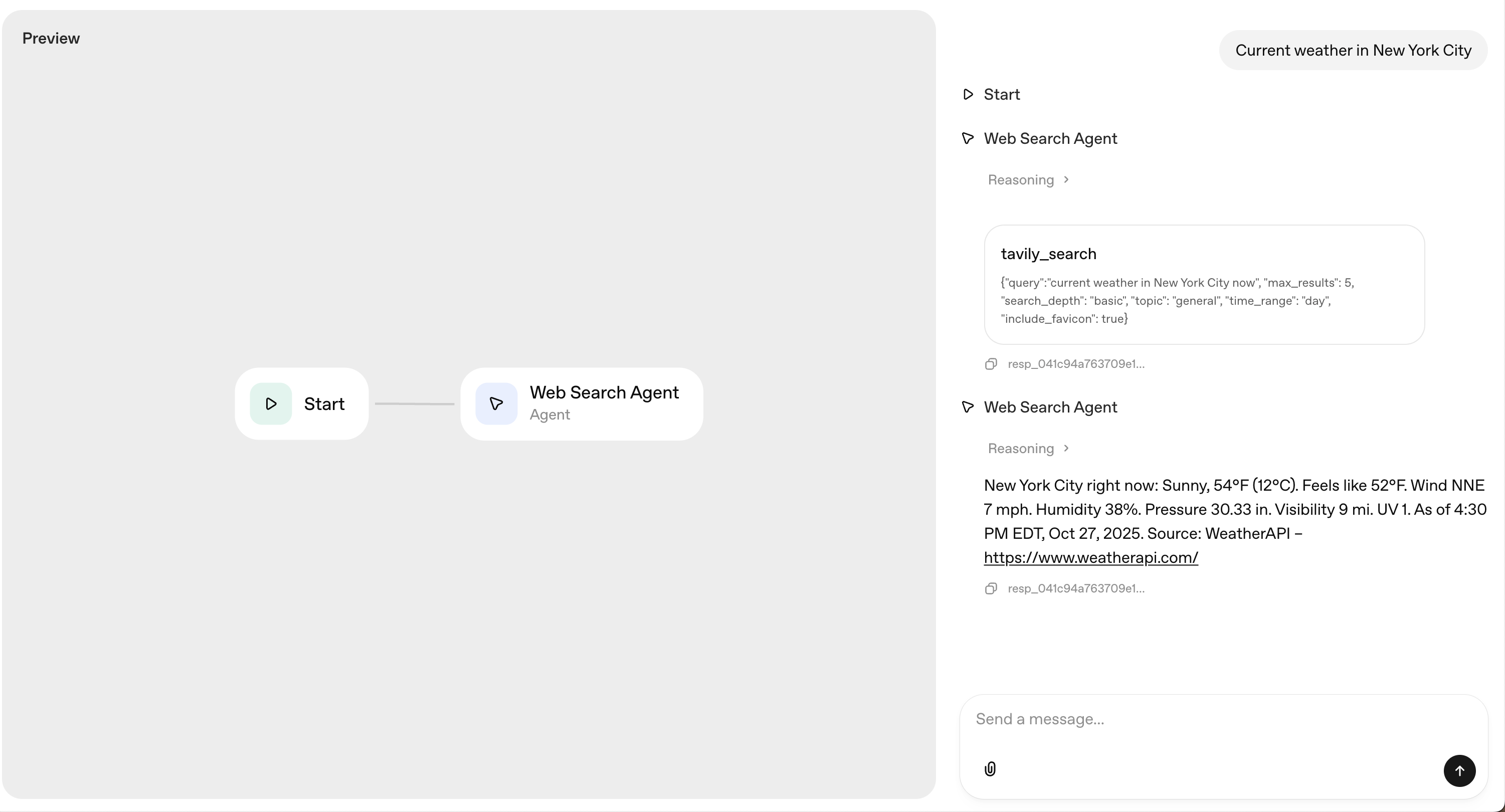
 Test your agent with queries that require real-time information to verify everything is working as expected.
 ## Real-World Applications
### Market Research Agents
Build agents that continuously monitor industry trends, competitor activities, and market sentiment by searching for and analyzing relevant business information.
### Content Curation Systems
Create agents that automatically find, extract, and summarize content from multiple sources based on your specific criteria and preferences.
### Competitive Intelligence
Develop agents that crawl competitor websites, map their content strategies, and extract pricing, features, and positioning information.
### News & Event Monitors
Build agents that track breaking news on specific topics by leveraging Tavily's news search mode, providing real-time updates with citations.
## Real-World Applications
### Market Research Agents
Build agents that continuously monitor industry trends, competitor activities, and market sentiment by searching for and analyzing relevant business information.
### Content Curation Systems
Create agents that automatically find, extract, and summarize content from multiple sources based on your specific criteria and preferences.
### Competitive Intelligence
Develop agents that crawl competitor websites, map their content strategies, and extract pricing, features, and positioning information.
### News & Event Monitors
Build agents that track breaking news on specific topics by leveraging Tavily's news search mode, providing real-time updates with citations.